
How to Use NFC Tags for Small Business with Cricut


If you’re looking for a simple way to promote your small business at craft fairs, vendor events, networking opportunities, or even everyday interactions, NFC tags might be one of the easiest tools you can add to your marketing toolkit.
I recently started experimenting with NFC tags for small business use, and I was surprised by how simple they are to set up. With just a tap of a phone, someone can instantly visit your website, Linktree, social media profile, Venmo, online store, or any other link you choose.
In this tutorial, I’ll show you how to program an NFC tag and turn it into a custom keychain using your Cricut. I’ll also share another version I created with my 3D printer.
The best part? These keychains take about 15 minutes to make and cost only a few dollars.

What Are NFC Tags?
NFC stands for Near Field Communication. These small chips allow compatible smartphones to instantly access information when tapped against the tag.
You have probably used NFC technology before without realizing it. Tap-to-pay credit cards, Apple Pay, and Google Pay all use NFC technology.
For small businesses, NFC tags can be programmed to:
- Open your website
- Open your Linktree
- Display your social media profiles
- Open your online store
- Share contact information
- Open your Venmo or PayPal
- Link to a product catalog
- Link to a booking page
Instead of handing someone a business card and hoping they visit your website later, they can simply tap their phone and access it immediately.
Why Use NFC Tags for Small Business?
As a small business owner, I am always looking for ways to make it easier for people to find my content and products.
An NFC keychain Cricut project like this can be attached to your keys, craft bag, vendor booth setup, or even displayed at events.
Imagine someone asking what you do.
Instead of spelling out your website, you simply hand them your keychain and tell them to tap it with their phone.
Within seconds, they are on your website.
That convenience can make a huge difference.
Materials Needed
*this blog contains affiliate links which help me earn a small comission at no cost to you, read my full privacy policy here.
To make your NFC keychain, you’ll need:
- NFC Blank Tags
- Faux Leather
- Heat Transfer Vinyl (HTV)
- Fabric Glue
- Cricut Machine
- Fine Point Blade
- Key Ring
- Painter’s Tape
- Mini Heat Press or Cricut EasyPress Mini
Optional:
- 3D Printer
- 3D Printer Glue
- Printable Vinyl Stickers
Step 1: Program Your NFC Tag
Before making the keychain, you’ll need to write information to the NFC tag.
I used the free NFC Tools app on my iPhone.
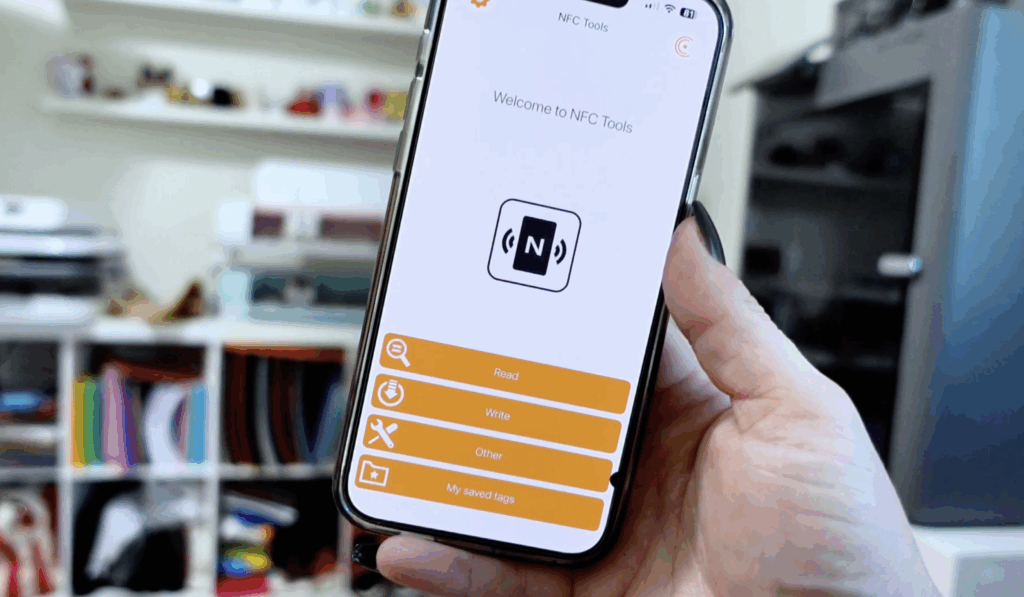
Open the app and select:
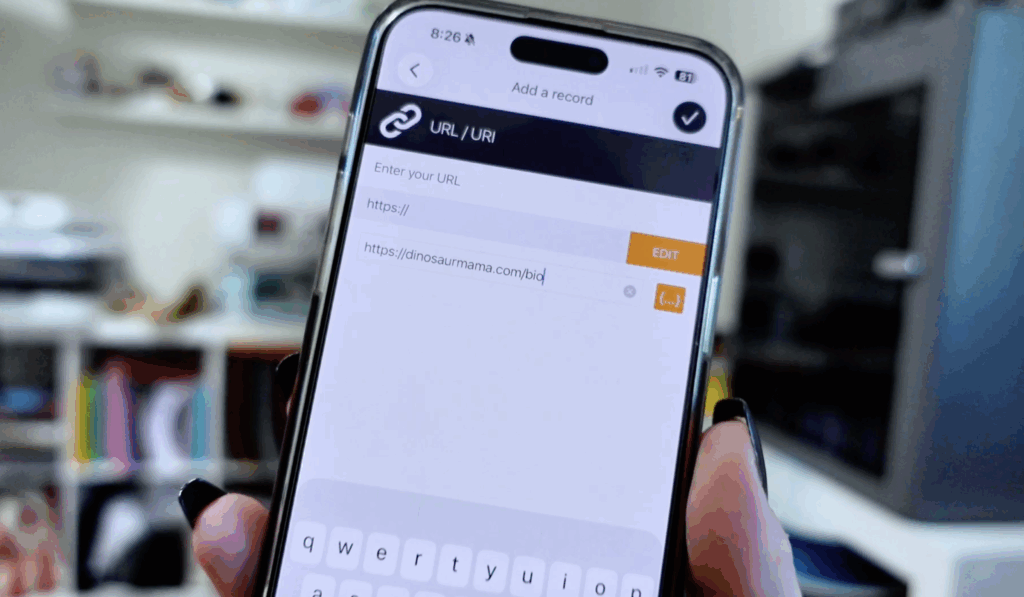
Write → Add Record → URL
Enter the website you want the tag to open.
For my keychain, I linked directly to my Linktree/Bio page so visitors could easily find all of my social media accounts, tutorials, and website links.
Once your URL is entered:
- Tap the checkmark.
- Select Write.
- Hold the NFC tag against your phone.
- Wait for the confirmation message.
That’s it.
Your NFC tag is now programmed.
You can test it immediately by holding it near your phone. A notification should appear allowing you to open the website.
One of my favorite features is that these tags can be rewritten later if you change your website or want to use them for a different purpose.
Step 2: Create Your NFC Keychain in Cricut Design Space
For my project, I used my business logo as the centerpiece of the design.
Start by uploading your logo into Cricut Design Space.
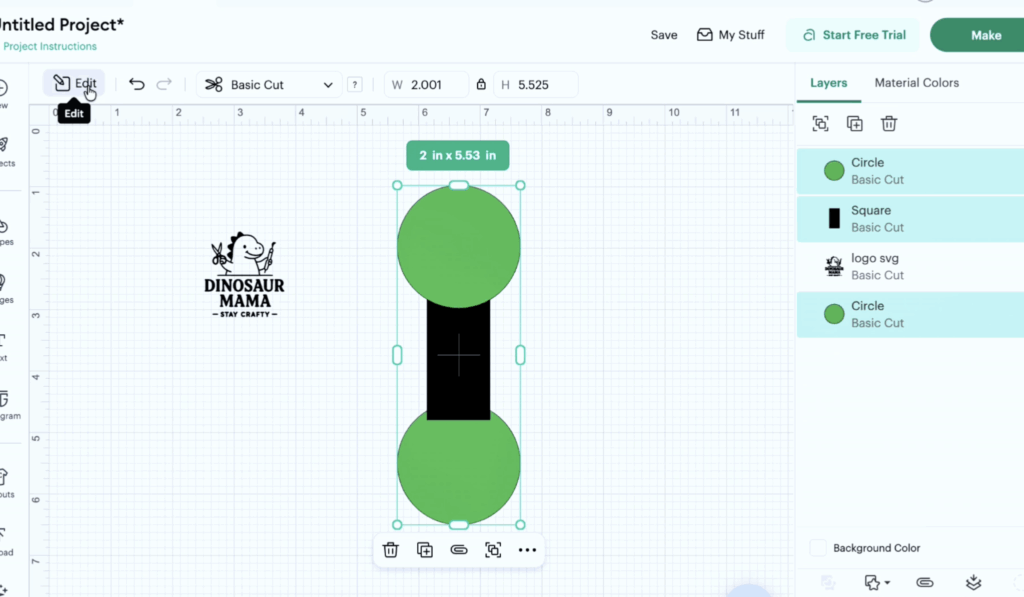
Next:
- Add a shape approximately 2 inches wide.
- Resize your logo to fit inside the circle.
- Add a rectangle for the keychain tab.
- Add a second shape at the top for the folded keychain section.
The NFC tag itself is approximately one inch wide, so you’ll want your design to be larger than that.
Once everything is positioned correctly:
- Align the shapes.
- Distribute vertically if needed.
- Weld the design together.
Now duplicate your logo so it appears on both sides of the keychain.
Step 3: Cut the Faux Leather
Place your faux leather onto a Cricut mat.
One thing I’ve learned when cutting faux leather is that painter’s tape makes a huge difference.
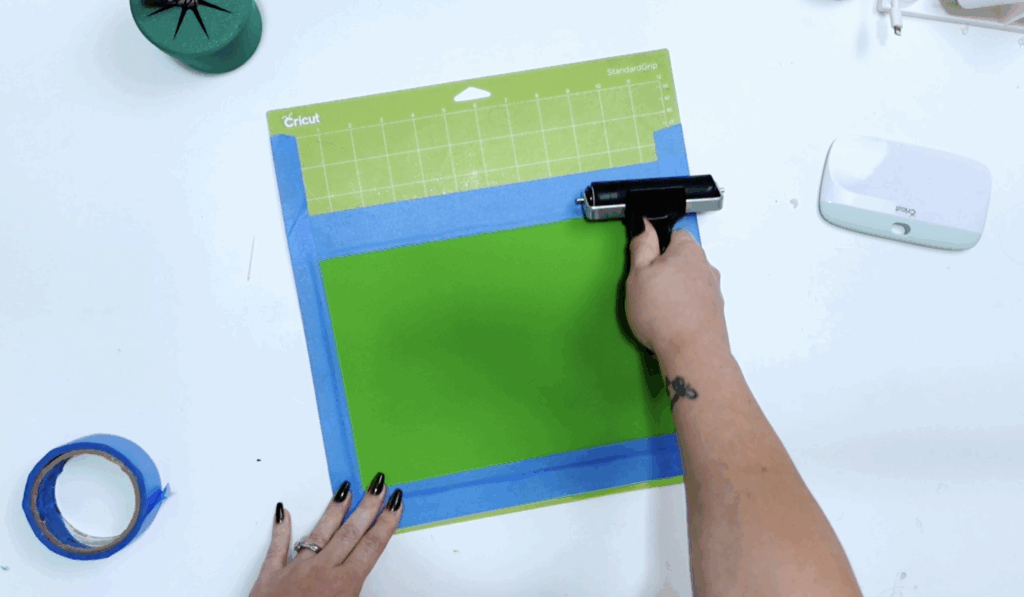
I like to tape all four sides of the material to keep it secure during cutting.
For my machine settings:
- Material: Faux Leather
- Blade: Fine Point Blade
- Pressure: More
This combination gave me a clean cut with very little cleanup required.
Step 4: Apply the Heat Transfer Vinyl
Cut your logo from HTV and remember to mirror the design before cutting.
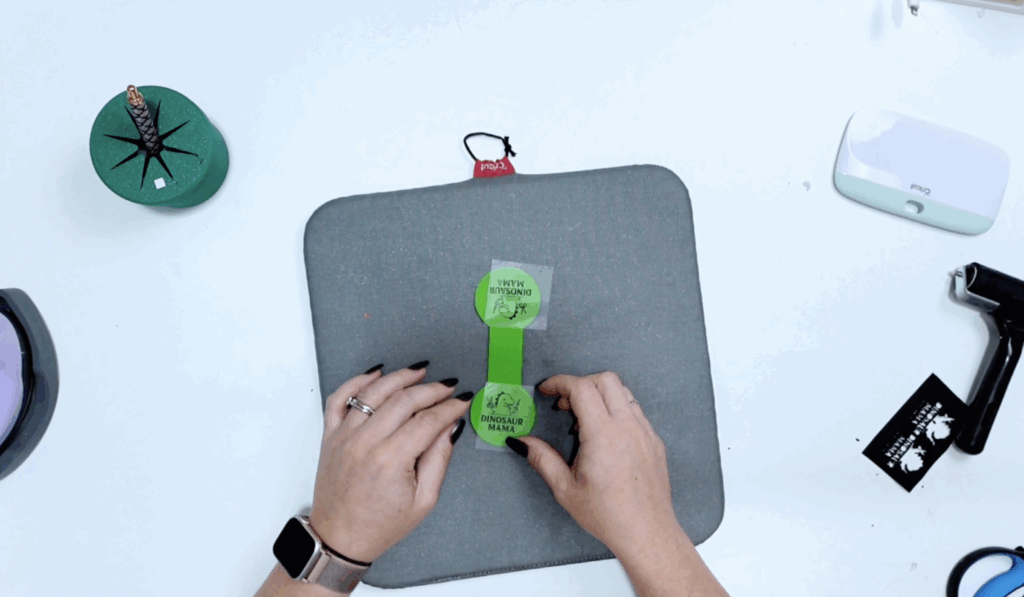
After weeding, position the design onto the faux leather.
I used my mini heat press at approximately 310°F for about 15 seconds.
Transfer one side first and then repeat for the opposite side.
The result is a professional-looking keychain that showcases your business branding on both sides.
Step 5: Assemble the NFC Keychain
Before gluing everything together, test your NFC tag one more time.=
Remove the tape cover from the NFC. Then place the NFC tag inside the center of the keychain.
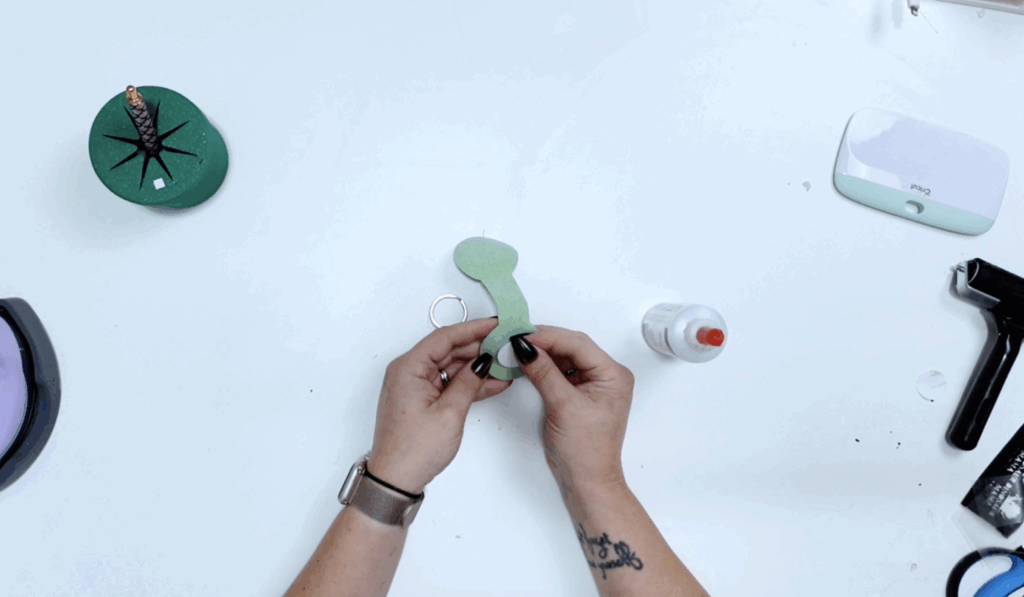
Slide the key ring into position.
Apply fabric glue around the outer edge of the circle, avoiding the key ring area so it can move freely.

Press the two sides together and allow the glue to dry.
Once finished, test the NFC tag again.
Your website should open instantly with a simple tap.
Optional: Create a 3D Printed Version
I also created a second version using my 3D printer.
Instead of faux leather, the NFC tag fits directly into a printed keychain shell. I added printed stickers to both sides and secured everything with glue.
The result is a durable, hard-plastic version that works exactly the same way.
If you have a 3D printer, this can be another great option for creating custom-branded NFC keychains.
Free Keychain STL Download
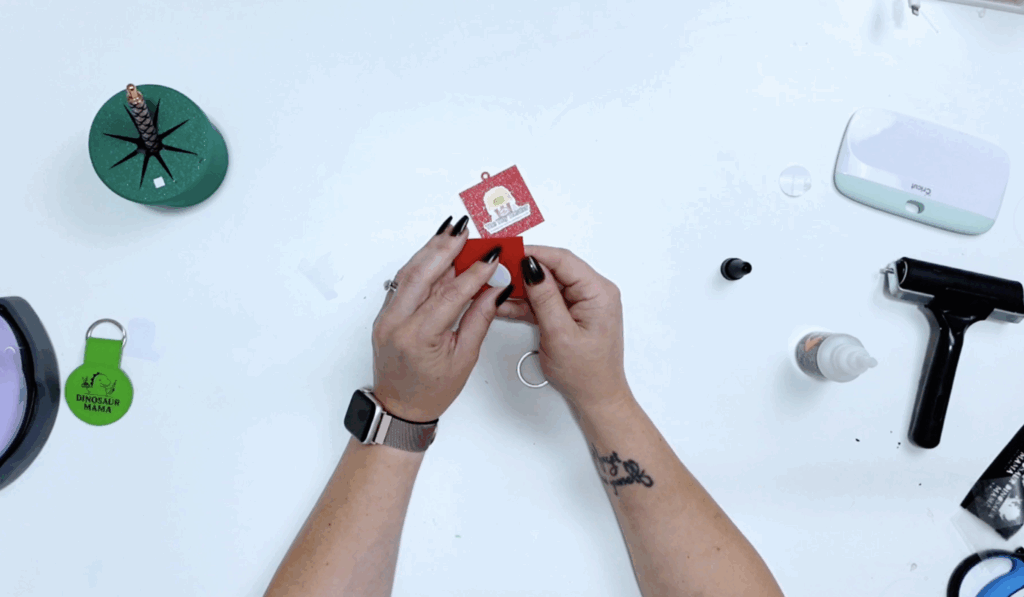
How to Download the Free Keychain STL File
This free Keychain STL file is available inside my Community Vault Design Number #229.
Here’s how to get it:
- Enter your email below
- Check your inbox for the password (will be sent within 5-10 min, check spam and promotions!)
- Open the vault with the password sent
- Download the zip file and then follow the instructions below.
Learn how to download the files here.
Important Usage Info
These free downloads are intended for personal use, but I do include a small business commercial use license for handmade physical items.
If you enjoyed this tutorial, make sure to check out my other Cricut tutorials and grab the free keychain STL download.
Final Thoughts
Learning how to use NFC tags for small business purposes opens up a lot of creative possibilities.
Whether you make a faux leather version with your Cricut or a hard plastic version with a 3D printer, these keychains provide an easy and professional way to connect potential customers directly to your business.
For vendor events, networking opportunities, craft fairs, and everyday conversations, an NFC keychain can help turn a quick interaction into a website visit with a single tap.



This tag idea is great! I’m going to pass it along to my daughter for her new ice cream bike!!