
Cricut Design Space June 2026 Update Explained


If you’ve opened Cricut Design Space recently and noticed things look different again, you’re not imagining it. Cricut has officially rolled out another Design Space update in June 2026, and this time, they are reversing one of the biggest changes they made earlier this year.
Around February of 2026, Cricut moved many of the editing tools into a side panel accessed through an Edit button up top. While the goal was likely to simplify the interface, many Cricut users found the change frustrating. The new layout shifted the canvas, required extra clicks, and made commonly used tools harder to access.
My original video about the February 2026 Design Space update reached over 25,000 views, and the overwhelming feedback from Cricut users was frustration with the new Edit panel. This update appears to be Cricut’s response to that feedback.
If you’re wondering where everything went or how the new layout works, here’s a complete walkthrough of the Cricut Design Space June 2026 update.

Why Did Cricut Change Design Space Again?
Some of the biggest complaints included:
- The side panel reduced the available canvas space.
- The canvas shifted when panels opened and closed.
- Frequently used tools required additional clicks.
- Long-time users had to relearn where everything was located.
After months of feedback, Cricut has largely returned to the previous layout while keeping a few newer organizational improvements.
What’s New in the Cricut Design Space June 2026 Update?
The biggest change is simple:
Most editing tools have been moved back to the top toolbar.
The Edit button that previously housed many of these functions has been removed, and users will once again find their most-used tools across the top of the screen.
For many Cricut crafters, this will feel much more familiar. However, if you are new to Cricut in the last 4 months, everything is now foreign!
Starting a New Project
When opening Design Space, you’ll still see Cricut’s project type suggestions.
While these project templates are designed to help new users get started, I personally feel like these guided flows don’t help too much. I truly still believe starting with a blank canvas is the way to go.
To access all editing features, simply select:
New Project → Blank Canvas
Once inside the canvas, you’ll notice that the left-side design panel remains largely unchanged.
Operations Menu
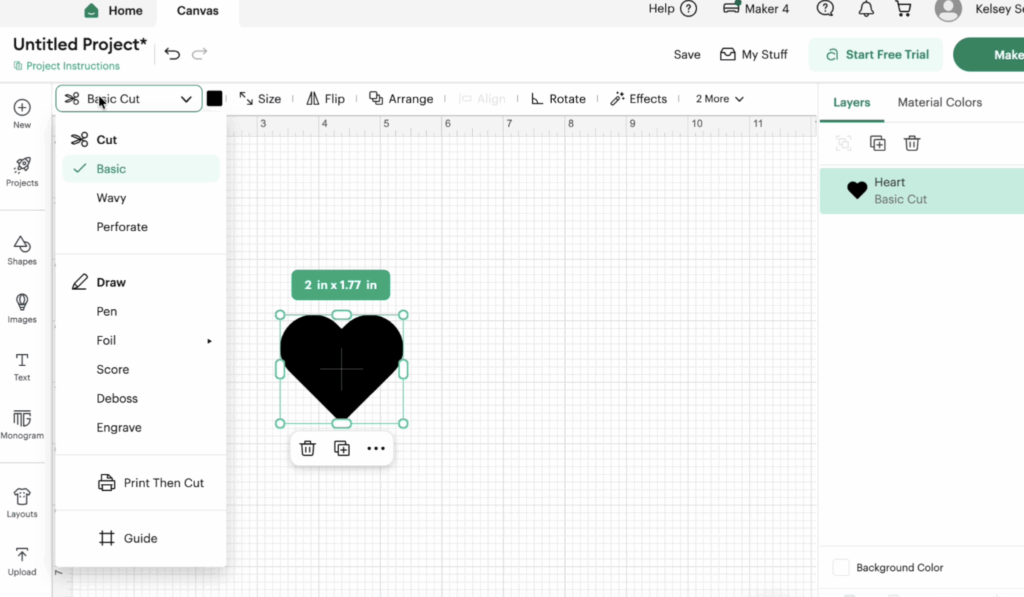
The Operations drop-down menu remains one of the most important tools in Design Space and has remained the same for a while.
This is where you choose how your machine will interact with a design.
Depending on your Cricut machine, you may see options such as:
- Basic Cut
- Draw
- Pen
- Foil
- Score
- Deboss
- Engrave
- Print Then Cut
For example, if you’re using a Cricut Maker 4, you’ll see more operation choices than users with a Joy machine because the Maker supports additional tools and materials.
Material Color Settings
This feature helps organize your project by assigning colors to cut layers.
For example:
- Red vinyl can be assigned to a red layer.
- Blue cardstock can be assigned to a blue layer.
If you’re working with Print Then Cut projects, you can also access pattern fills and printed designs through this section. The color tab is incredibly useful for organizing complex multi-layer projects.
Size Controls Are Easier to Find Again
The size controls are once again located directly in the toolbar but now slightly dropped down.
You can:
- Change width
- Change height
- Lock proportions
- Unlock proportions for custom resizing
This makes resizing shapes, text, and SVG files much faster than navigating through additional menus.
Flip and Rotate Functions
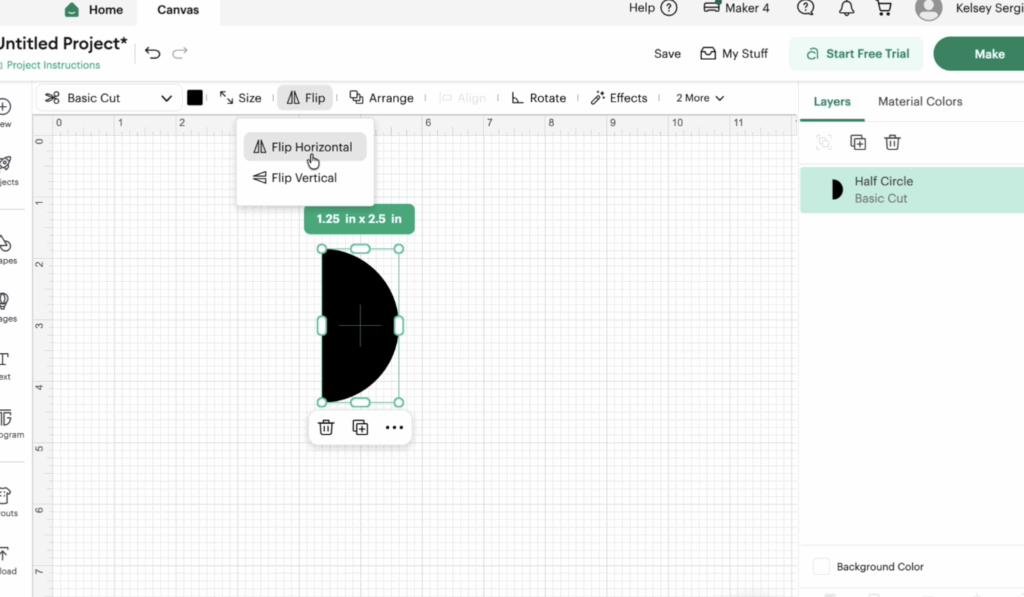
The Flip and Rotate tools are also back where many Cricut users expect them to be.
Flip options include:
- Flip Horizontal
- Flip Vertical
Rotate options allow you to:
- Drag the rotation control manually
- Enter a specific degree value
These tools are essential for mirror images, iron-on projects, and precise design placement.
Arrange and Position Tools
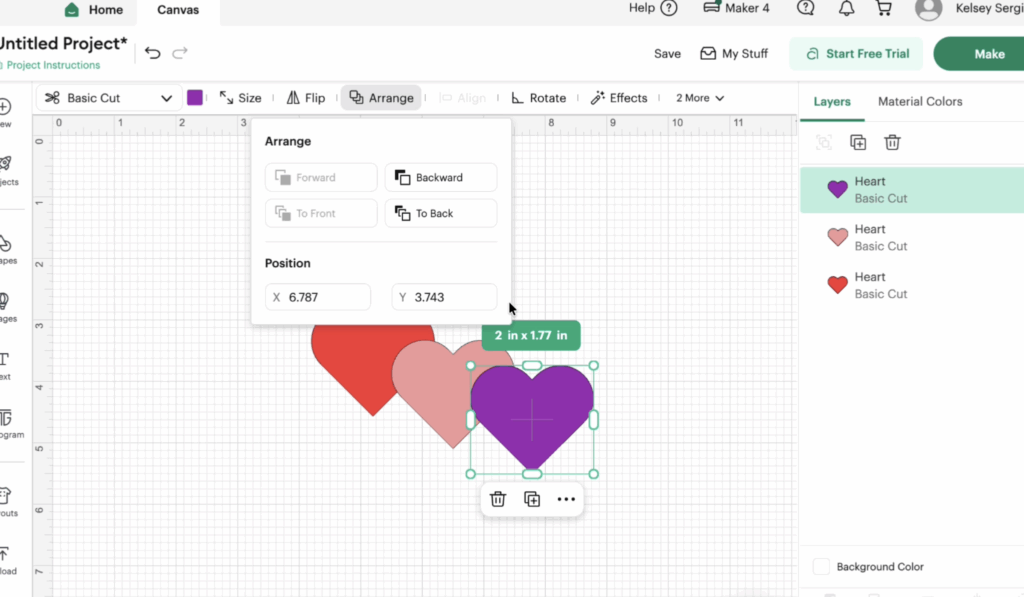
The Arrange menu controls layer order on your canvas.
You can:
- Bring Forward
- Send Backward
- Bring to Front
- Send to Back
This is especially useful when working with layered SVG files or complex sticker designs.
The Position feature has now been grouped with Arrange. It may have always been, I honestly just never focused on this feature. Position allows you to place an object at a specific location on the canvas using X and Y coordinates.
Alignment and Distribution Tools
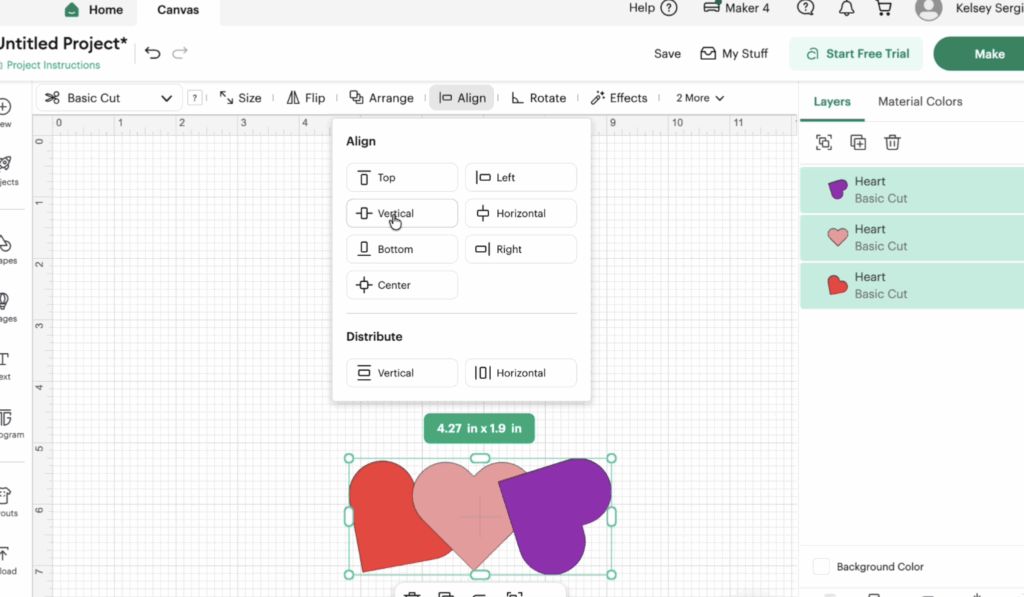
Alignment options include:
- Align Top
- Align Bottom
- Align Left
- Align Right
- Center Horizontally
- Center Vertically
These tools help keep projects neat and professional.
The Distribute function is particularly useful when working with multiple objects. Instead of manually spacing items, Design Space can automatically create equal spacing between objects both horizontally and vertically.
Effects Panel Updates
The Effects drop down or pop out is new in a sense of how they show this. The effects are:
Offset
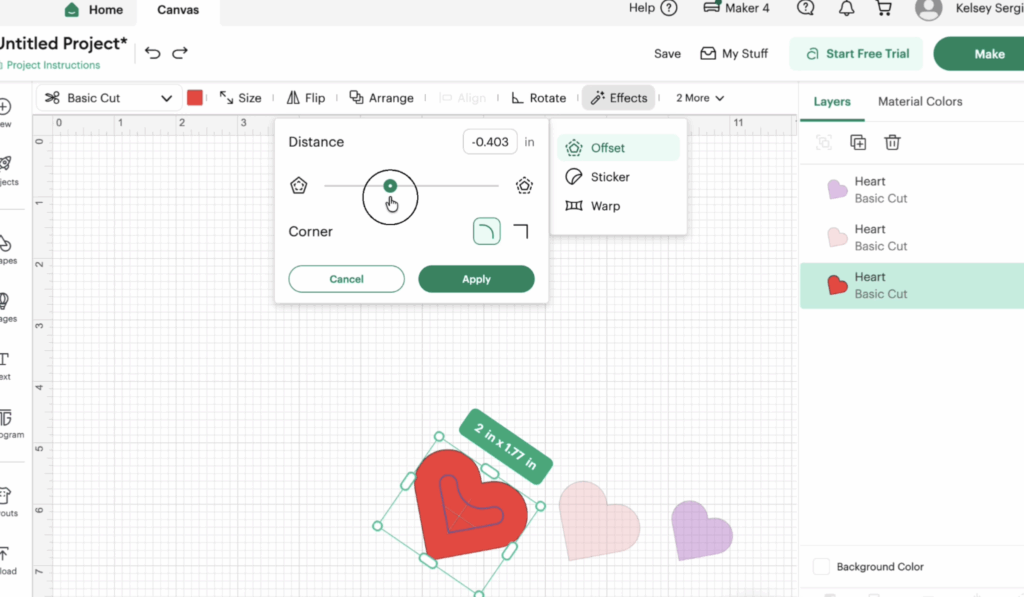
Offset allows you to create borders around images and text.
You can choose:
- Positive offsets
- Negative offsets (insets)
- Rounded corners
- Sharp corners
Offset remains one of the most useful tools for sticker makers and card designers.
Sticker Tool
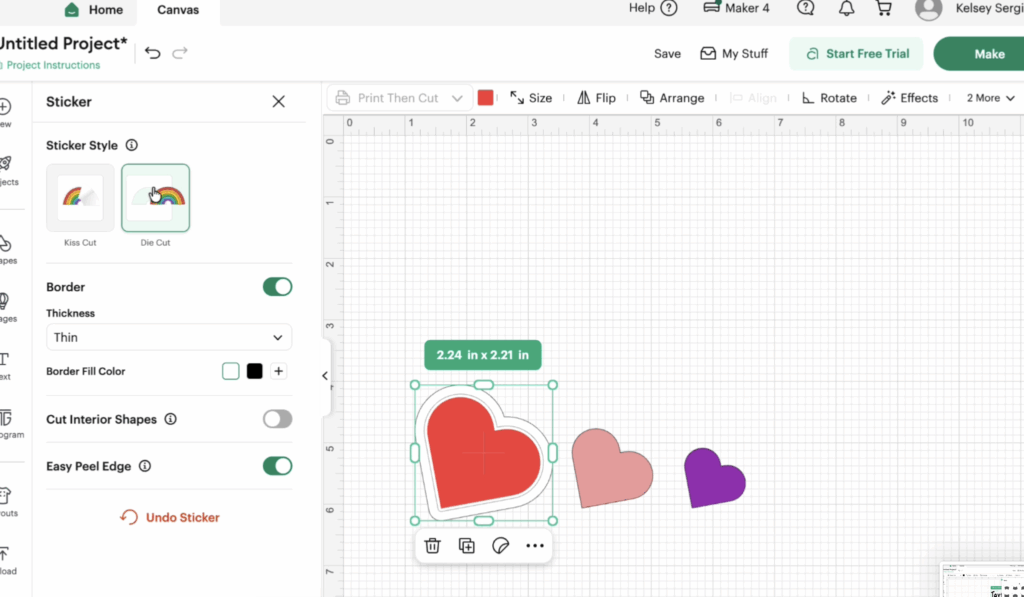
The Sticker feature is still available and now remains free for all users.
Options include:
- Kiss Cut
- Die Cut
- Border Thickness
- Easy Peel Edge
While some creators prefer building their own sticker layers manually, the built-in Sticker feature can be useful for beginners who want a quick solution.
Warp
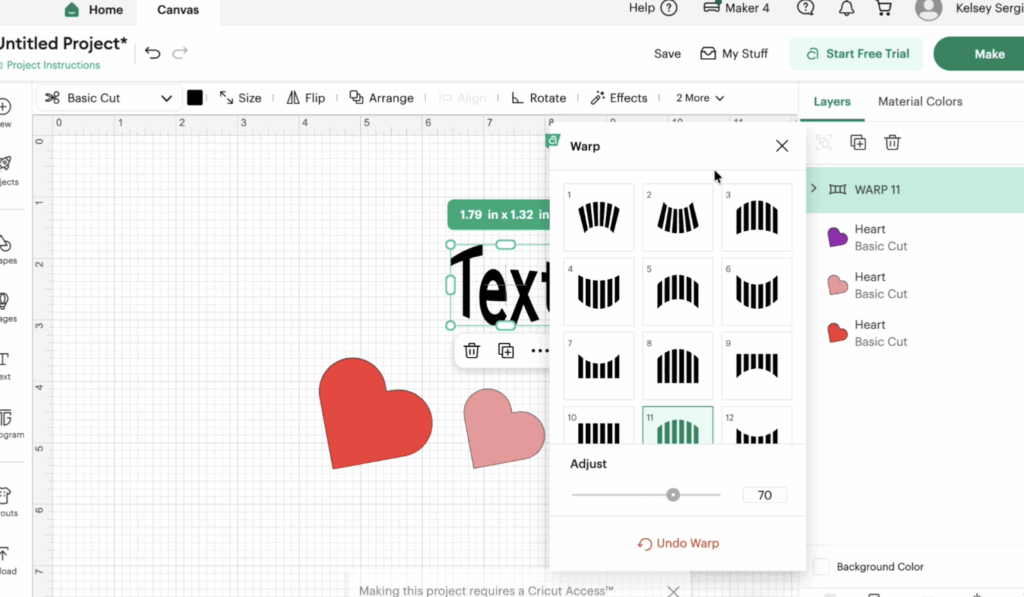
Warp allows text to curve and bend into custom shapes. This feature remains part of Cricut Access and is not available on the free plan. If you regularly create signs, shirts, and decorative text designs, Warp can be a valuable tool. You can also use this tool online for free.
Text Tools Are Back Where Users Expect Them
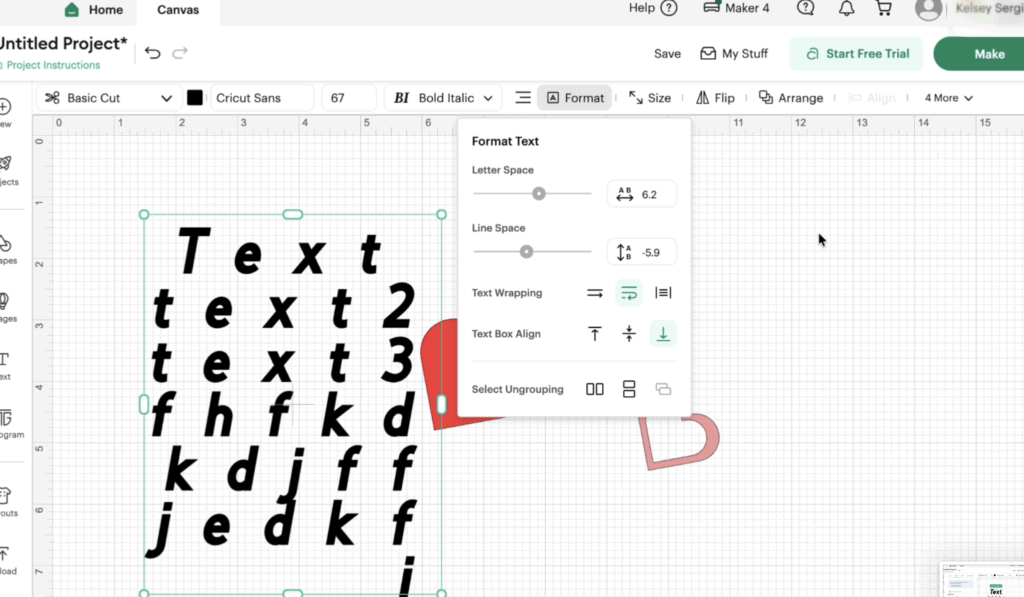
Another major improvement is that text controls are once again located at the top of the screen.
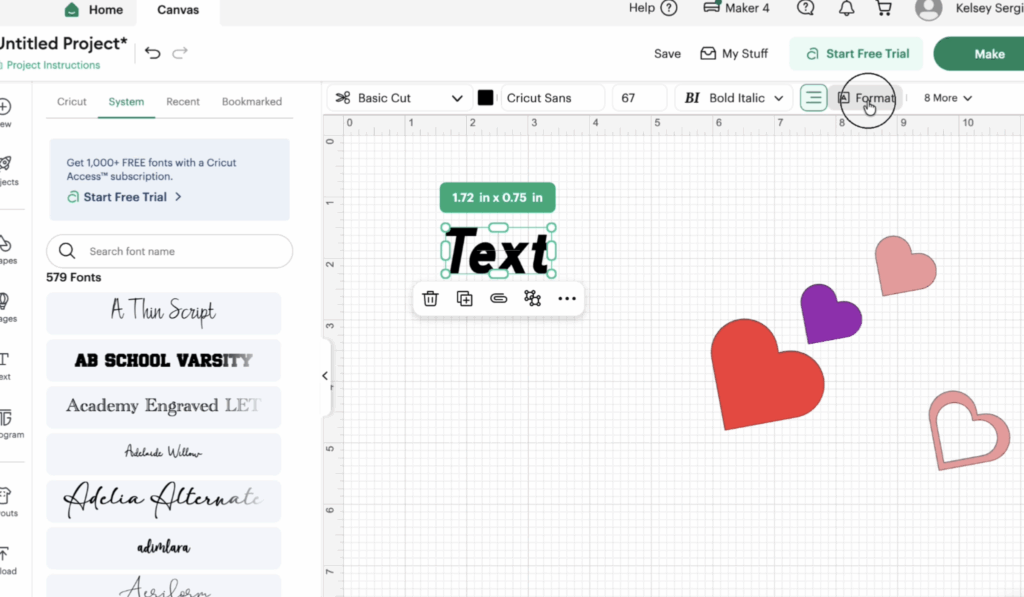
Available options include:
- Font selection
- Font size
- Bold
- Italic
- Alignment
- Letter spacing
- Line spacing
- Text wrapping
For users who frequently work with text-based projects, this helps so much with working quickly!
Is the June 2026 Cricut Update Better?
For many users, the answer is yes.
The return of the top toolbar restores a familiar workflow that long-time Cricut crafters have used for years.
While a few panels still open from the side, the overall experience feels less cluttered and requires fewer clicks.
Final Thoughts
The Cricut Design Space June 2026 update isn’t packed with brand-new features, but it does something many users have been asking for: it puts the tools back where they belong.
If you were frustrated by the earlier interface redesign, you’ll likely appreciate this update. Most commonly used tools are once again accessible from the top toolbar, making Design Space easier to navigate and more efficient to use.
Have you updated Cricut Design Space yet? Let me know if you’re happy Cricut moved everything back or if you preferred the newer layout.



Thanks so much for updating us on the latest changes to DS. I haven’t used my Cricut the last few weeks, but I’m planning to use it this weekend, so I’m glad to hear the changes this time are good ones, what do you know. I was one of many who was completely, utterly frustrated, and, frankly, downright annoyed, at the changes they made, putting so many of the tools I use all the time in the drop-down Edit panel. It just made everything so much more time-consuming and made the canvas so much smaller. I don’t understand why anyone ever thought that was a good idea! Thankfully, it looks like they got enough negative feedback to change it back. Wish they’d ask us users before they go making big changes like that. And I agree with you – why can’t I just go directly to a blank canvas to start, like I used to? Is that so hard? Just let me click on the canvas as soon as I go to DS. I really don’t like having to do extra click(s) to get to it every time. But hey, maybe they’ll change that back in the future, too.
Thanks so much for updating us on the latest changes to DS. I haven’t used my Cricut the last few weeks, but I’m planning to use it this weekend, so I’m glad to hear the changes this time are good ones, what do you know. I was one of many who was completely, utterly frustrated, and, frankly, downright annoyed, at the changes they made, putting so many of the tools I use all the time in the drop-down Edit panel. It just made everything so much more time-consuming and made the canvas so much smaller. I don’t understand why anyone ever thought that was a good idea! Wish they’d ask us users before they go making big changes like that. Thankfully, it looks like they got enough negative feedback to change it back. And I agree with you – why can’t I just go directly to a blank canvas to start, like I used to? Is that so hard? Just let me click on the canvas as soon as I go to DS. I really don’t like having to do extra click(s) to get to it every time. But hey, maybe they’ll change that back in the future, too.
Oops, sorry for the double post!
Oops! Sorry for the double post!
Awesome news Thanks.
Now I have a question.
Why can I not contour?
I import an image, but it doesn’t allow myto do anything except resize it. No contour, no outline. Yes you can modify at start of down load but not everything. And if I do it still doesn’t allow me to edit after. Any suggestions?
Thanks
what kind of file is it?
Yes, I’ve used my Cricut, and I am so happy about the update. I was so frustrated with the previous version because it took me so long to finish my project. I appreciate your blog review of these changes. Thanks!
Now if they would only get rid of the pop up box that shows up under the selected item on your canvas, I would be content. That box makes it hard to grab the item and move/resize it. The box is in the way. How people are able to do anything on a tablet or phone, is beyond me. I feel for them, I truly do. Cricut is trying to make DS better, but more often than not, it just makes it harder.
Thank you for the update!! Much appreciated!!
while it took longer to do projects I didn’t mind the changes, however I am happy they moved some things back to the top. It took me a bit to find the warp though as I had yet to read your post. I liked the old sizing better than the one now. I do wish I could load more than 1 project I have saved on the canvas as sometimes I use different parts of different projects to make a new project. I can upload several onto the canvas but not not those under my saves.
I also agree with the opening menu, click, click, click before you get “started”. It’s time consuming. I would also like it if we could move the contour screen around when it’s open. Just a thought. I am glad they put the bar back on top. Again, click, click, click. Maybe we need shortcut keys as soon as we open DS? Happy Crafting