Cricut AI Project Designer: New Updates Explained


The Cricut AI Project Designer is officially updated again… and if you’ve been following along, you know I had to test it for myself.
Because anytime Cricut rolls out something new, especially involving AI, I’m immediately asking one question:
Is this actually helpful… or just another feature we won’t use?
So in this post, I’m walking you through the re-launch of AI Project Designer, what it actually does inside Cricut Design Space, and my honest thoughts after testing it on my Cricut machine.

If you want my original breakdown of the earlier version of this tool, you can check it out here.
What Is The Cricut AI Project Designer?
The Cricut AI Project Designer is the newest update to the Cricut AI suite of tools built directly into Cricut Design Space.
The goal? To give Cricut Design Space users a single place where you can type a simple idea in your own words and have AI turn it into a full project idea, from concept to final project.
Cricut is describing this as a new conversational tool with a familiar chat experience and conversational interface, where you can go from idea → design → finished project in one connected platform.
In theory, it sounds like a much smoother design process.
In reality… it’s not quite there yet.
The (Re)Launch of AI Project Designer (What’s Actually New)
With the relaunch of AI Project Designer, Cricut is trying to bring everything into one workflow inside their software experience.
Here’s what’s included in this newest addition:
- A new conversational tool (chat-style prompting… supposedly)
- Ability to create AI images from a text prompt
- Sticker generation (print then cut)
- A new draw feature with filled-in pen designs
- Option to upload an inspiration image (I didn’t test this)
- Integration into Cricut’s entire ecosystem across mobile devices and desktop
Now here’s something important:
I did NOT have access to the chat feature they show on their blog yet.
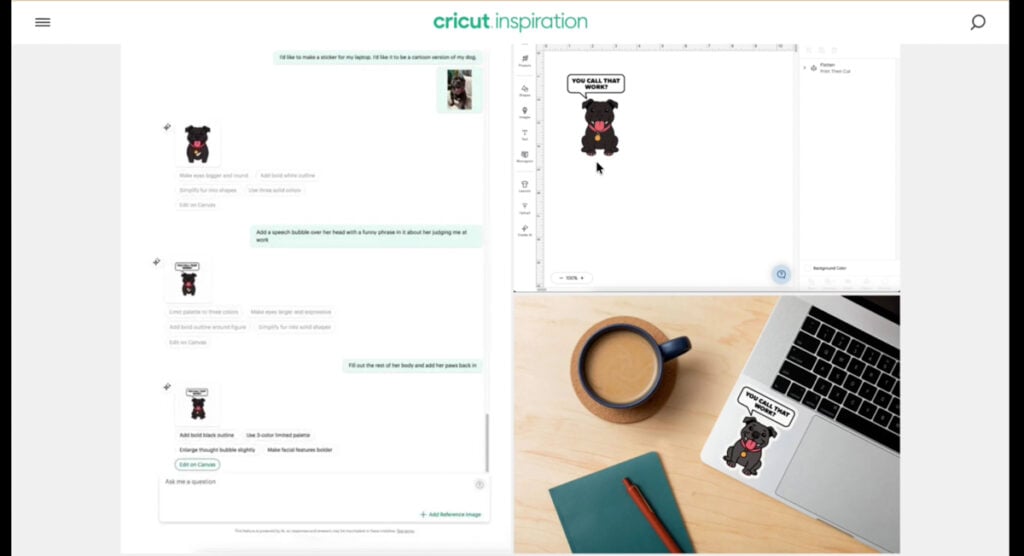
So while they’re marketing this whole familiar chat experience, my version didn’t fully match that. It felt more like entering a text prompt, not a full conversational interface.
That could change, but right now, just know that your user experience may look different.
Let’s Talk About the Credit System
The Cricut AI Project Designer runs on a credit system (as do most AI systems I have worked with) and honestly, this is where things start to fall apart a little.
Here’s how it works:
- The free version of Cricut Design Space gives you a one-time deposit of 5 monthly AI credits
- If you have a Cricut Access subscription, you get 20 monthly AI credits
Every single time you originally generate a design or then regenerate it/fix something… it uses a credit.
And I don’t know about you, but I don’t get things right on the first try. Ever.
So those monthly AI credits? Gone real fast.
Testing Cricut AI Project Designer (My Real Experience)
Alright, let’s walk through this exactly how I did it.
Step 1: Enter a Text Prompt
I typed in a simple idea: cute pom with tongue out.
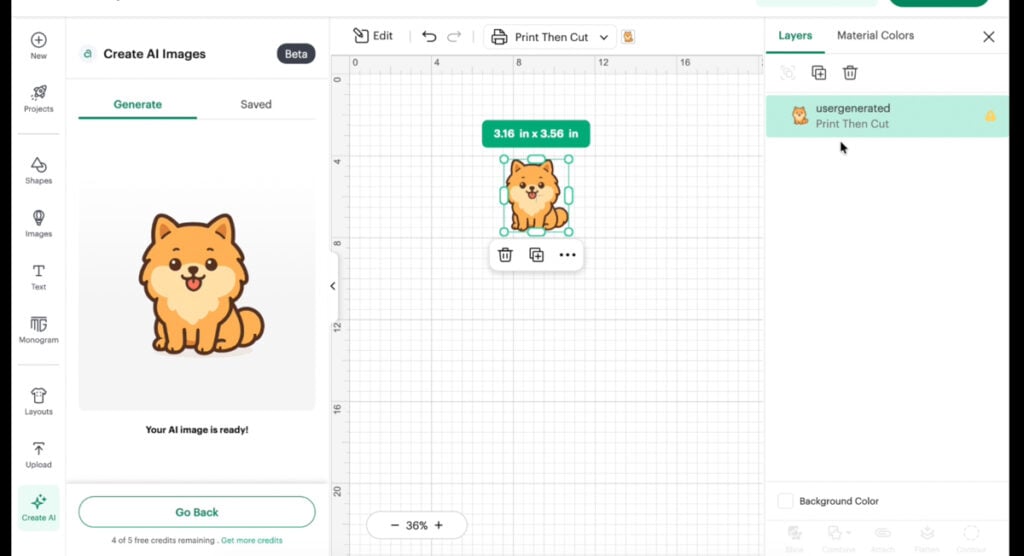
This is where the Cricut AI Project Designer takes over and starts generating AI-generated images.
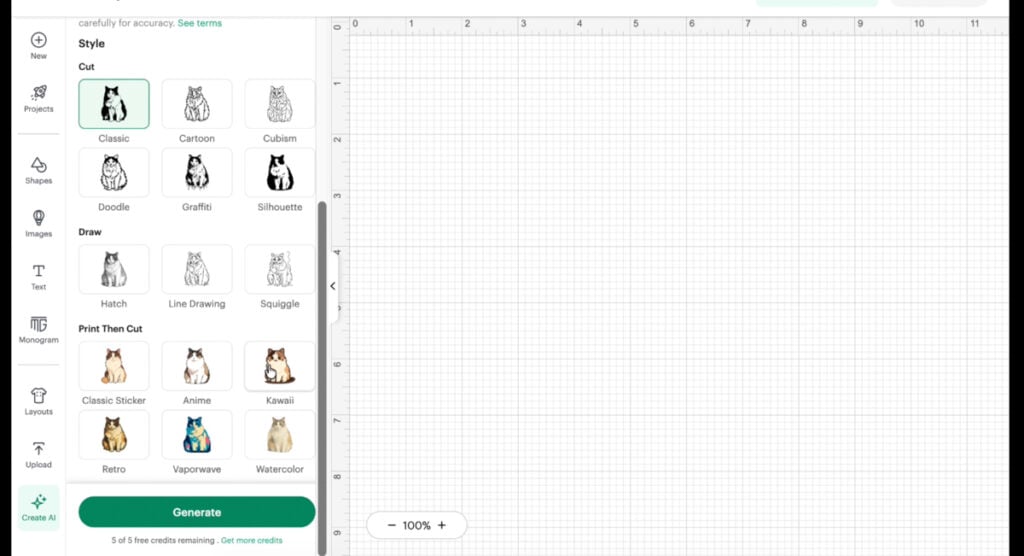
Step 2: Choose a Style
You’ll see different styles like:
- Classic
- Sticker
- Draw
Each one gives you a different type of final project. Within these styles they have more types for example, silhouette, line art, or kawaii.
Step 3: Generate (and Lose a Credit)
As soon as you hit generate… there goes one of your credits.
The turn around was fast, about 45 seconds or less per design.
Feature Breakdown (What Actually Works)
Sticker Feature (Print Then Cut)
This creates full-color designs for sticker sheets.
✔ Looks cute
✔ Ready for print then cut
BUT…
❌ Not layered
❌ Not editable into sets of multiple objects
❌ Not usable for advanced paper projects
So yes, it works. But it’s limited to very specific projects.
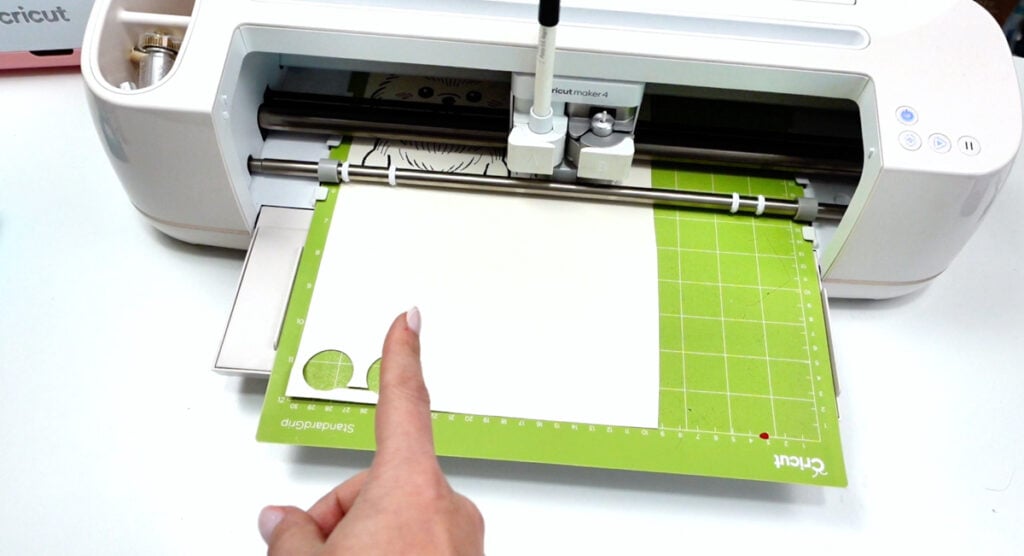
Draw Feature (The Weird One)
This one surprised me.
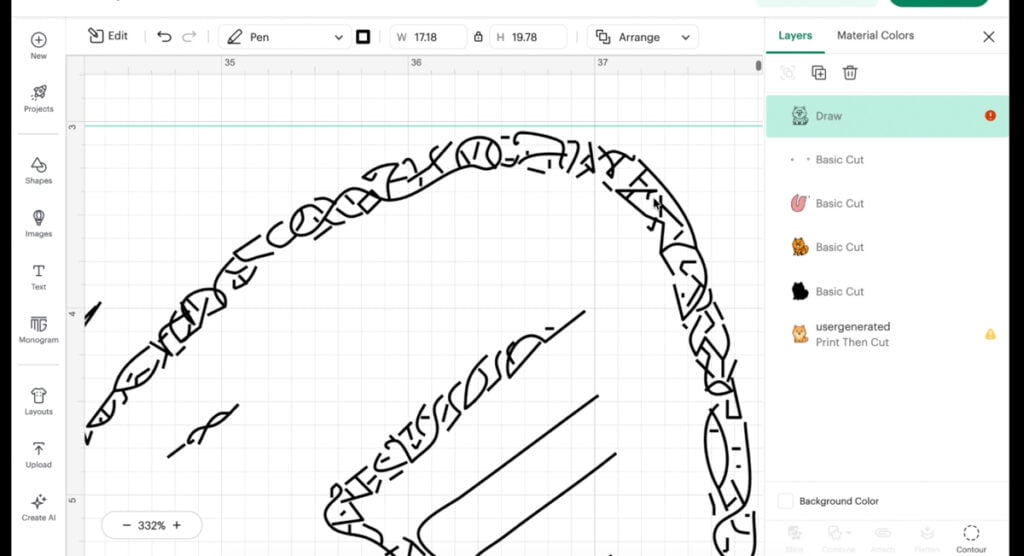
The Cricut AI Project Designer creates a squiggle-filled pen design that technically fills in the image.
It’s honestly kind of cool.
BUT…
- It took 30 minutes on my Cricut machine (probably my doing because of size… That’s a long time for one design
- We still don’t have fill text… which is wild
So while it’s interesting, it’s not something I’d use regularly.
Layered Designs (Still Manual)
This is the biggest issue.
Even with the launch of AI Project Designer, there is still no automatic layered design feature.
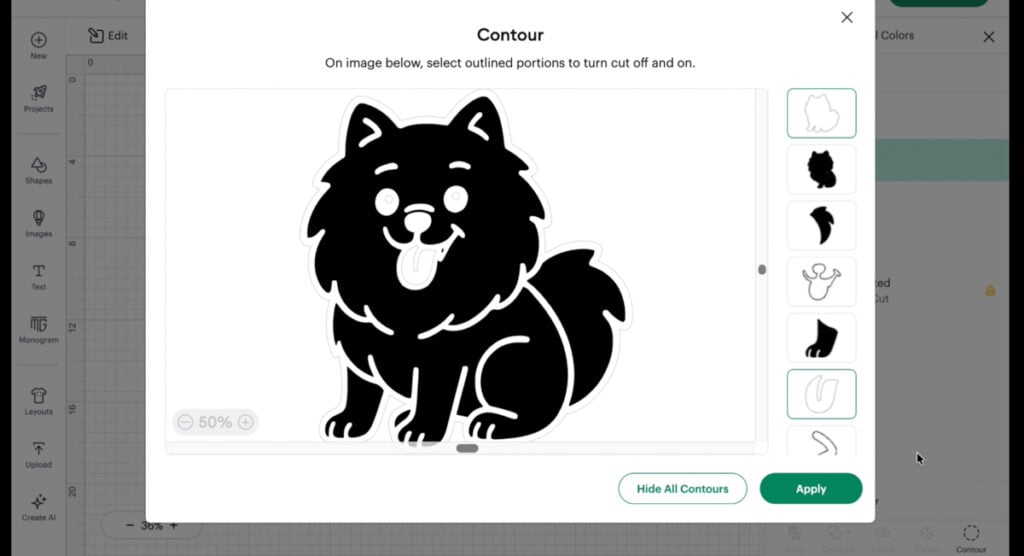
If you want layered paper designs or vinyl projects, you still have to:
- Duplicate
- Contour
- Manually build your design
They should really work towards integrating the AI feature with their create layers feature. Especially if you are a paid subscriber.
Major Limitations You Need to Know
Let’s just be very clear here.
The Cricut AI Project Designer has some big limitations:
Personal Use Only
You cannot use these designs to sell products.
Locked Inside Cricut Design Space
You can’t easily export them (without breaking rules).
Limited Credits
That one-time deposit of AI credits + monthly AI credits system is restrictive.
Not for Advanced Projects
This is not built for:
- Multi-operation projects
- Complex paper projects
- Advanced editing tools
Is Cricut Access Worth It for This?
Short answer?
No. Not in my opinion. Not for this alone.
Even with a Cricut Access subscription, you’re only getting 20 credits per month.
That’s maybe a few projects before you run out.
If you’re already paying for Cricut Access for fonts and the Cricut Design Space library, fine.
But if you’re thinking about subscribing just for AI…
I wouldn’t.
If you’re on the fence, I actually have a full breakdown here on what happens if you cancel Cricut Access.
Better Alternatives (What I Actually Recommend)
If you really want hyper-personalized designs and better AI tools…
Kittl
- WAY better AI design tools
- You can actually export your designs
- More flexibility in your design process
- My link gives you a discount
SVG Trace
- Great for converting images into cut files
- Works well with SVG converters
- Use code KELSEY10 for 10% off pro plans
These tools just give you more control, better output, and a smoother overall software experience.
Who Is This Actually For?
The Cricut AI Project Designer is best for:
✔ Beginners
✔ Cricut Design Space users who feel overwhelmed
✔ Someone looking for a quick project idea
But if you’re more advanced…
It’s probably not replacing your workflow anytime soon.
Final Thoughts
The Cricut AI Project Designer is a cool concept.
And I do think Cricut is moving in the right direction with AI.
But right now?
It feels limited, a little restrictive, and honestly… not something I’d rely on.
Between:
- The credit system
- Lack of layering
- Personal use restrictions
…it’s just not there yet.
Let’s Talk
Are you using the Cricut AI Project Designer?
Do you think it’s worth it or are you skipping it?
Want Free SVG Files?
Sign up for my newsletter below for access to my Community Vault of freebies and get my weekly release notifications sent to your inbox!
Stay crafty 💛