
Cricut AI Generator: How to Use + Limitations Explained


If you’re into crafting with your Cricut machine, you’ve likely heard of the new AI feature built right into Cricut Design Space. The so‑called Cricut AI generator promises to let you whip up one‑of‑a‑kind designs with just a few words in a text box. It sounds like magic: type a description, generate an image, upload to your machine and cut. But as with all fancy new tools, there are trade‑offs. In this blog we’ll walk through exactly how it works, what you can do with it, and some of the quirks and limitations you’ll want to know. Whether you’re a casual hobby crafter or a seasoned maker: you’ll get a clear picture of what this tool is really capable of.

What Is the Cricut AI Generator?
Inside Cricut Design Space there’s a new feature (called “Create AI”) that lets you generate images using advanced AI technology. With this Cricut AI generator you enter a simple description: a text prompt, and the tool uses AI to output a black‑and‑white cut‑ready image. It’s integrated into the same user‑friendly interface you’re already using for your projects. Because it’s built into the environment where you design and cut, the idea is you don’t need to export or import files from elsewhere for simple projects.
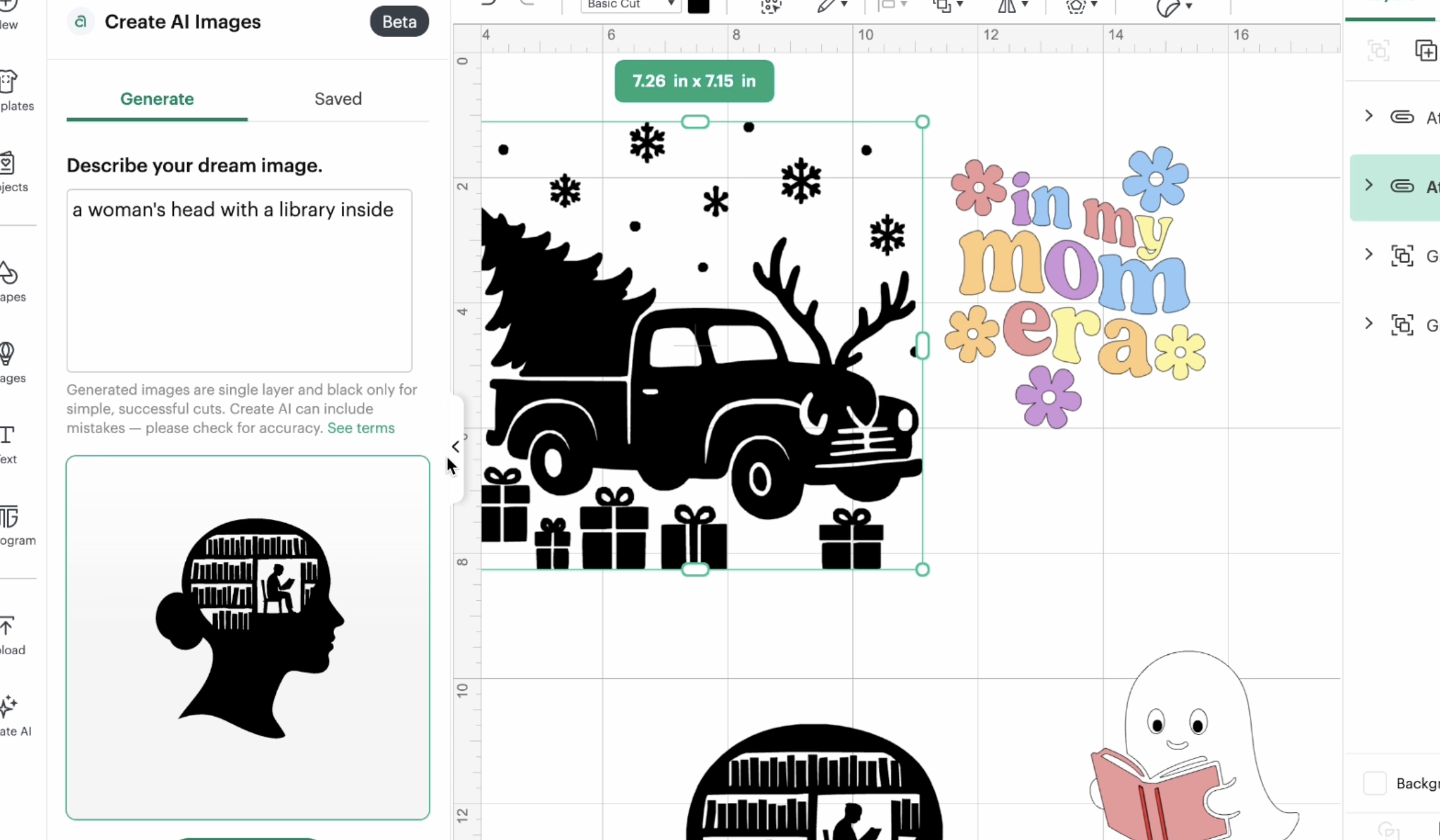
The output is designed to be used in your cutting machine, for example on a vinyl decal or a t‑shirt, but it’s not a full vector art solution. It produces single‑layer, black only images, and you don’t get a polished layered SVG file. That means if you want multi‑colour, intricate or commercial‑use designs you may get frustrated.
Learn how to convert ChatGPT images into layered SVG files here.
How to Use the Cricut AI Generator in Design Space
Using the Cricut AI generator is pretty straightforward for any maker. Here’s how to get going:
- Make sure you’re logged in to Design Space and have a subscription to Cricut Access. The tool is subscriber‑only.
- On the right side bar on the Canvas you will see the Create AI button.
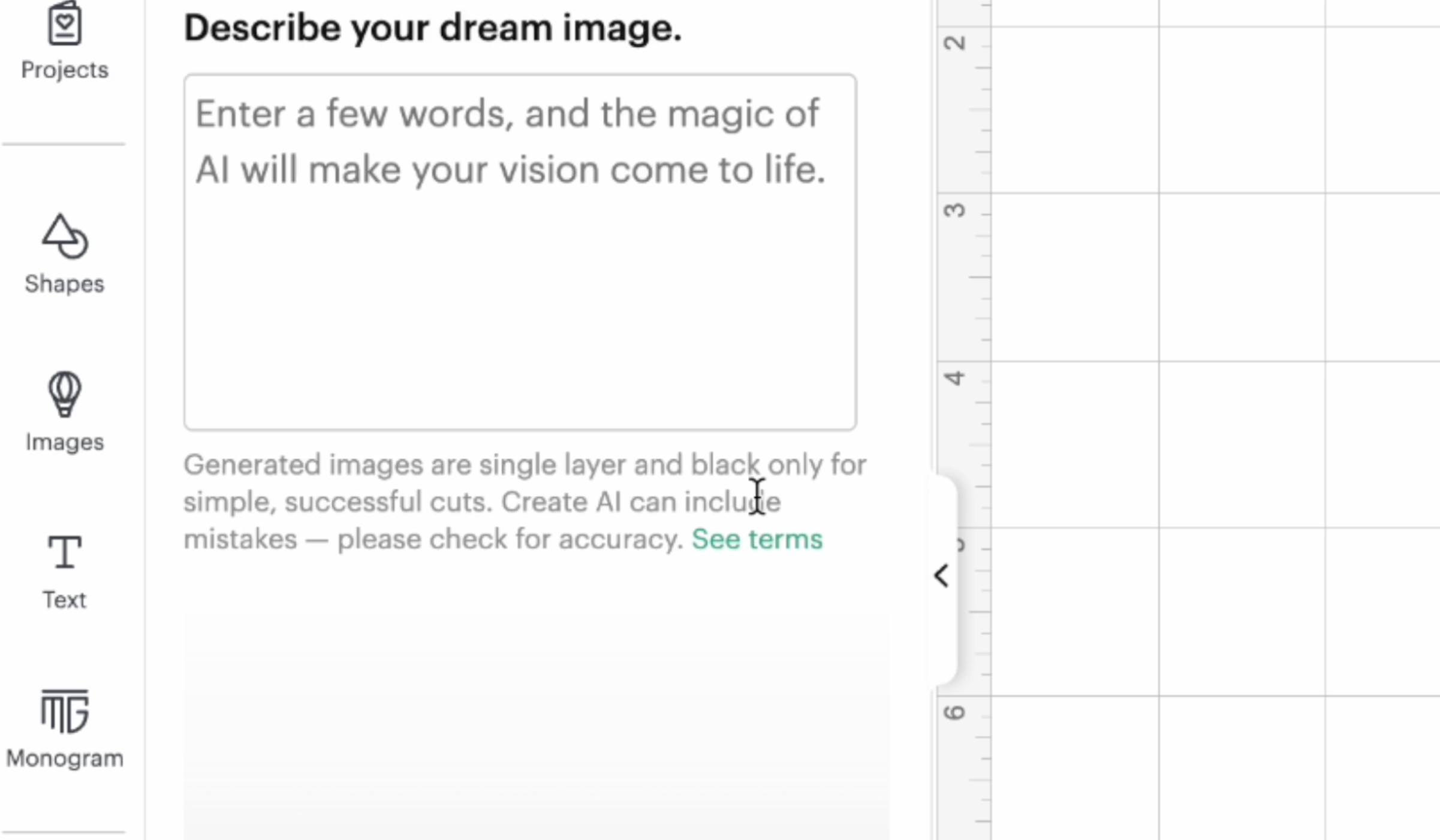
- Enter your text prompt.
- Hit Generate. Wait for the image to render, about 30 seconds to a minute.
- The system will output a single‑layer black cut design, then you click to add it to the canvas.
- Edit if needed: you can ungroup, detach, remove pieces, color them etc, though the base file is basic. Some you will have to contour for details as well.
- When you’re happy, send it to your machine (like a Cricut Maker or Cricut Explore) and cut away.
Because it’s in the same workflow you already use for your machine, there’s a nice convenience factor. But that convenience comes with limitations.
File Limitations and Image Quality Concerns
Here’s where things get a little messy for the Cricut AI generator. While it generates a cut‑ready file, it’s not made to replace full vector design workflows. Some of the key issues:
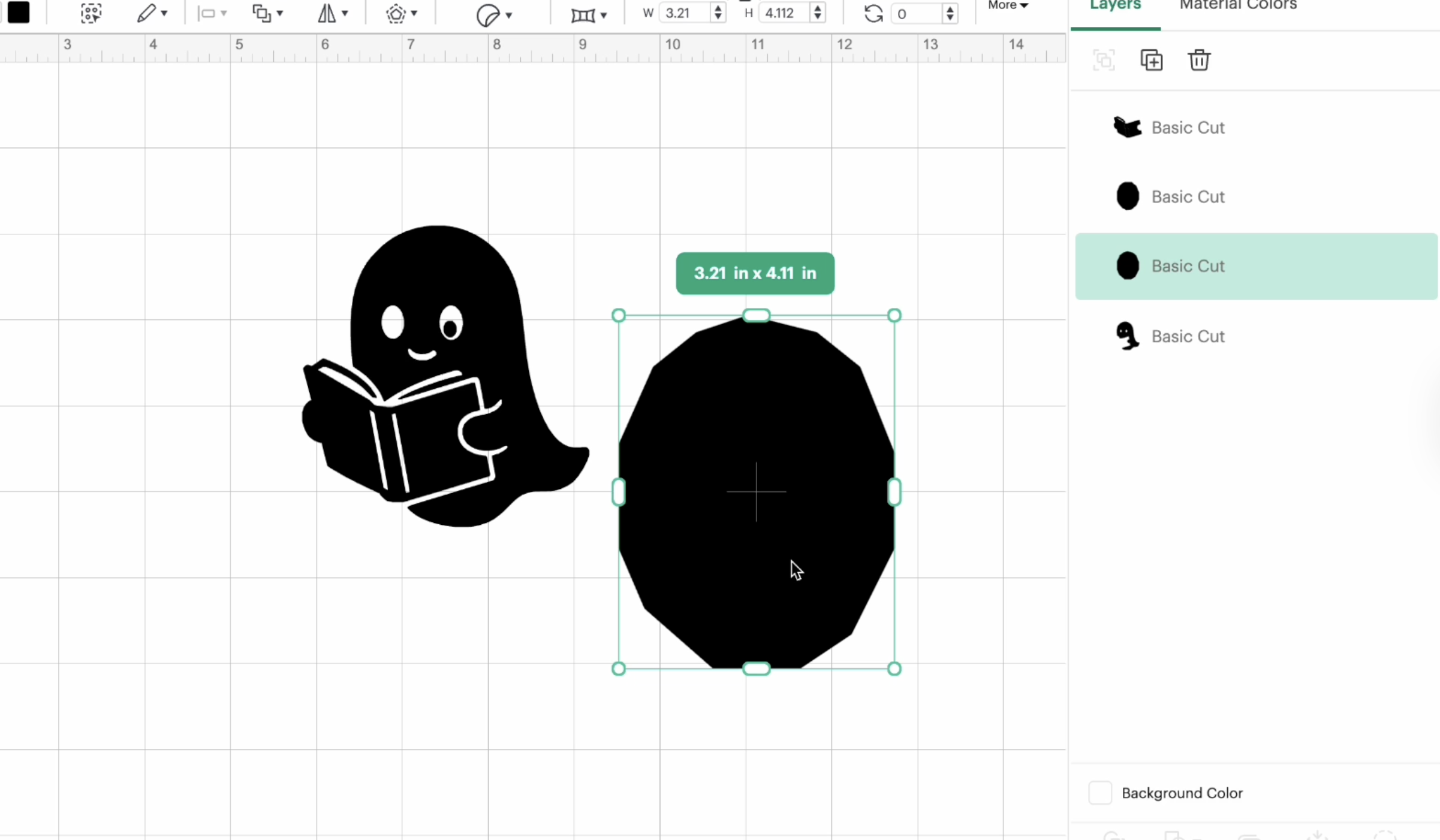
- The output is single layer and black only, meaning if you were hoping for multi‑colour or layered cuts, you’ll hit a wall.
- The images tend to be jagged or have odd shapes when un‑grouped.
- You can edit the design in Design Space: un‑grouping, contouring etc, but you lose the polish of high‑quality SVG files or professional vector designs.
- Because the tool doesn’t export a separate scaled vector format like a standalone SVG converter workflow, you’re limited in how far you can refine.
- If your project demands crisp details, multi‑layered cuts, or scalable vector graphics for commercial quality, this tool may fall short.
So while the interface is user‑friendly and the tool is fast, you’ll want to temper expectations.
Commercial Use & Legal Limitations
One of the most important things for makers to understand: you cannot assume you can use everything generated by the Cricut AI generator for commercial purposes. Here are the rules:
- The AI‑generated images are for personal use only. If you’re creating items you plan to sell, you’re out of bounds.
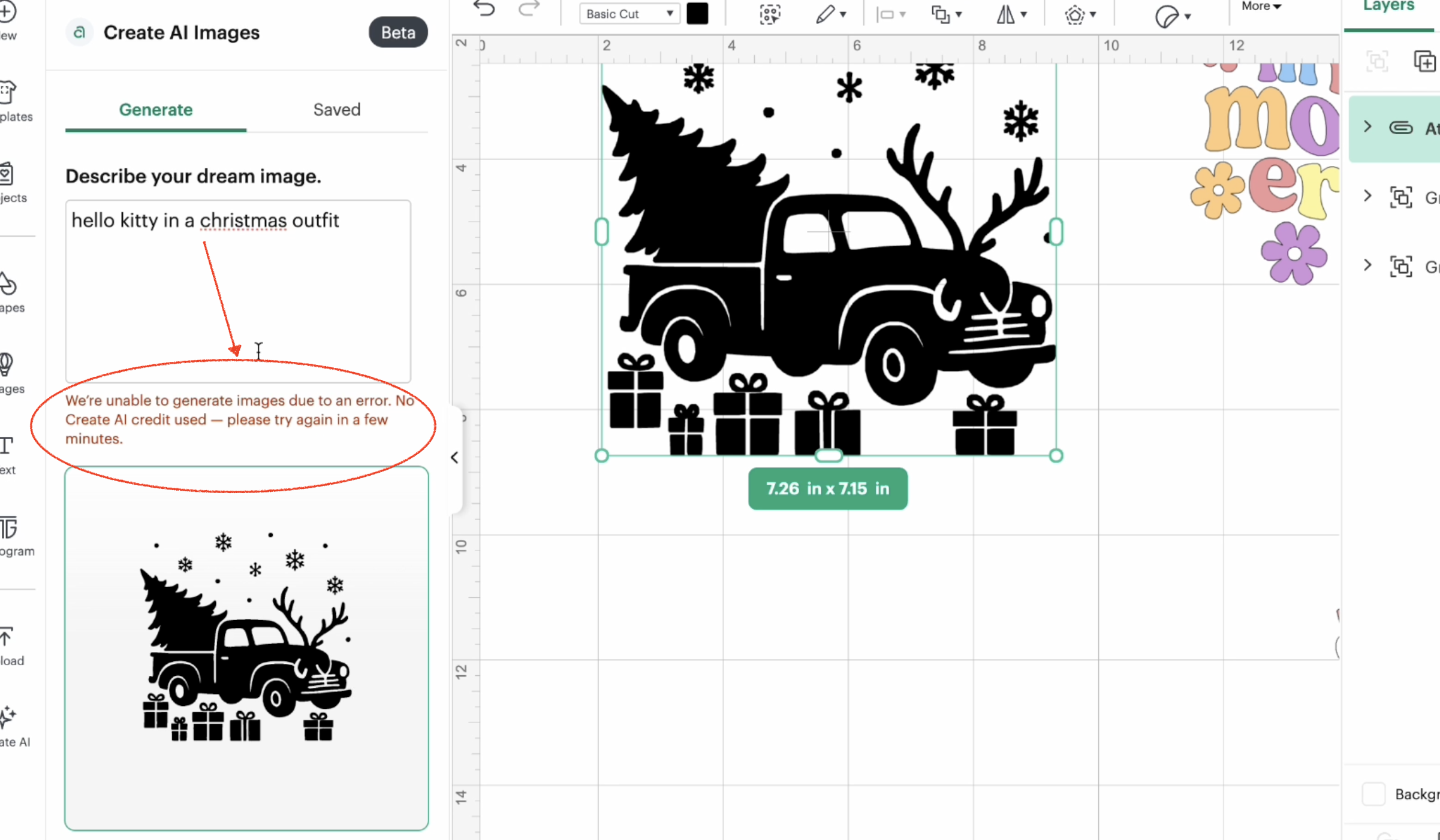
- The tool blocks trademarked or licensed content, which is good, but if you try to create something like “Mickey Mouse castle”, it will likely fail.
- You also can’t download the image as a separate SVG file or use an external SVG converter to tweak it outside the platform (at least not officially through the tool).
- If your business relies on selling cut files or merchandise, you’ll want to use this tool only as a personal creative extension, not a commercial engine.
Understanding this limitation upfront helps avoid legal headaches or wasted time building product lines you can’t sell.
How It Compares to Other AI Tools
Let’s compare the Cricut‑native option with what else is out there. The Cricut AI generator has convenience. But if you’re after refined output, there are other pathways:
- Many makers use external AI tools (or free AI‑generated image platforms) to create layered designs, then bring them into Illustrator or Inkscape, convert to SVG, and import to Design Space.
- Tools like Adobe Illustrator give full vector control, layered paths, clean anchor points, export for multiple file formats and scale for commercial use.
- If you want crisp, professional cut files with multiple colours, gradients, or commercial licensing, you’ll likely find more value outside the built‑in tool.
- That said, for quick projects and hobby use the built‑in generator is a “powerful tool” in its niche, but it’s not a replacement for full pro workflows.
When It Works Well (And When It Doesn’t)
So when should you use the Cricut AI generator—and when should you skip it?
It works well when:
- You need a single‑colour cut, simple shape or icon (especially for hobby projects).
- You’re experimenting or playing around and want something quick to test in your machine.
- You value convenience and simplicity over detail or commercial polish.
- You’re making a personal craft project not selling a product.
It struggles when:
- You’re creating designs for sale, especially if you need layered cuts, multi‑colours or intricate backgrounds.
- You expect perfect, crisp vector paths and editing freedom.
- You rely on intricate designs, multiple layers, or commercial‑quality vector art.
- You need to export to other file formats or convert to scalable formats.
Is the Cricut AI Generator Worth Using?
In short: yes: if you use it for what it is. But no: if you expect it to do everything.
Pros:
- Integrated into your familiar craft machine workflow.
- Fast and convenient for quick, personal projects.
- Low learning curve thanks to a user‑friendly interface.
Cons:
- Limited output: black only, single layer, basic edit tools.
- No full vector export, and not suitable for many commercial uses.
- Credits and restrictions mean you’ll hit limitations for heavy use.
- If you’re used to detailed layered SVGs, this may feel frustrating.
For a hobby crafter who wants to try a new idea quickly on their machine, the Cricut AI generator is absolutely worth a look. For someone scaling a craft business, selling designs, or needing multi‑format export, you’re better off sticking with a pro workflow using external AI tools, Illustrator, SVG converters and so on.
Final Thoughts for Cricut Users
To wrap things up: if you own a Cricut machine and use Design Space regularly, this new tool adds a cool option to your toolbox. Feel free to experiment with it, play with text prompts, and make fun projects. If you’re mainly crafting for yourself, go ahead: you’ll enjoy the convenience and seeing what comes out. But if you run a small business, sell designs or need professional‑grade vector files: treat this as a side tool, not your main engine.
FAQs About the Cricut AI Generator
Q: Can I use the Cricut AI Generator without Cricut Access?
A: No, this feature is available only for subscribers of Cricut Access in the current release.
Q: Can I sell items made with Cricut AI images?
A: No, AI‑generated images from the tool are for personal use only and not intended for commercial purposes.
Q: How do I convert AI‑generated images into layered SVGs?
A: The built‑in tool doesn’t support full layered SVG exports. To get layered SVGs you’d need to use external AI tools, export the image as a PNG (this is doable in Cricut but a pain!), then use Illustrator, Inkscape, or an SVG converter.
Q: Are there better alternatives for creating SVGs?
A: Yes, if you have Inkscape or other design software, or specialized AI image generator apps, you’ll get more control, layers, file formats and scalability.
Q: Why are my Cricut AI images low quality or jagged?
A: Because the tool is built to produce simple one‑layer, black only images for quick cuts, not refined multi‑layer SVGs or full vector art. The editing options are limited and you may need to clean up manually.



![How to Wrap a Starbucks Cold Cup Wrap [with FREE Template]](https://dinosaurmama.com/wp-content/uploads/2022/10/starbucks-wrap.jpg)
Thank you for the explanation. I totally get it & understand what the new AI tool should be used for. I believe it may be helpful in some simple paper craft projects.
And yet, we still don’t have Snap Mat for Android. I honestly don’t think Cricut listens to its customer base. With all the external AI generators available, I think are trying to capitalize on the “AI Fever” that is currently on trend.