
Cricut Guided Flows: How to Use the New Updates


Cricut is constantly rolling out updates inside Cricut Design Space (some are not always my favorite), and one of the newest features is called “Cricut Guided Flows”. These updates are designed to help simplify the creative process, especially for a beginner starting their crafting journey.
If you’ve opened Design Space recently, you may have noticed that starting a project looks a little different from how it used to. Instead of jumping straight into a blank canvas, Cricut now offers Cricut Guided Flows that walk users through project types like vinyl decals, stickers, and cards.
Let’s take a look at how the feature works, what the new features include, and whether they’re helpful.

What Are Cricut Guided Flows?
Cricut Guided Flows are a new part of Design Space that walks users through certain projects step-by-step. Instead of starting from a blank canvas, you begin by selecting the type of project you want to make.
For example, you might see options like:
- Vinyl decal
- Stickers and labels
- Cards
- DTF Prints
These project ideas are meant to simplify the first step for a beginner by helping them choose a project before designing.
Once you select a project, the system sets up the design size area and will give you suggested materials off to the side. The goal is to “guide” users through the crafting journey with fewer decisions along the way.
For someone using new Cricut machines or starting their first project, this structure can feel much less overwhelming.
Want all the latest Cricut News and access to my free SVGs in the Community Vault. Join my free newsletter below.
Where to Find Cricut Guided Flows
You can find Cricut Guided Flows directly on the home screen when you first open Design Space.

You’ll notice several guided project types displayed near the top. These are part of the new features Cricut added to help beginners start crafting faster.
You can also access them when clicking New Project.
Instead of opening a blank canvas immediately, you’ll first see a selection of project categories. From there, you choose the project type and begin designing within a template or a custom-sized area.
How Cricut Guided Flows Work
Once you choose a project, the software sets up a design area tailored to that project’s size. It will let you choose some pre-set sizes or create your own.
For example, if you choose a vinyl decal, the flow may ask you what surface you are designing for. Options might include:
- Water bottles
- Mugs
- Notebooks
- Phone cases
- Tumblers
- Car windows
After selecting your project and size, the system will automatically generate the design space for you on the canvas.

This is where customizable templates come into play. The templates show you recommended project ideas that are tailored to that type of project.
This is helpful for beginners learning to work with materials like adhesive vinyl, heat transfer vinyl, or sticker paper.

Guided Sticker Projects and Print Then Cut
One area where Cricut Guided Flows stands out is the sticker workflow.
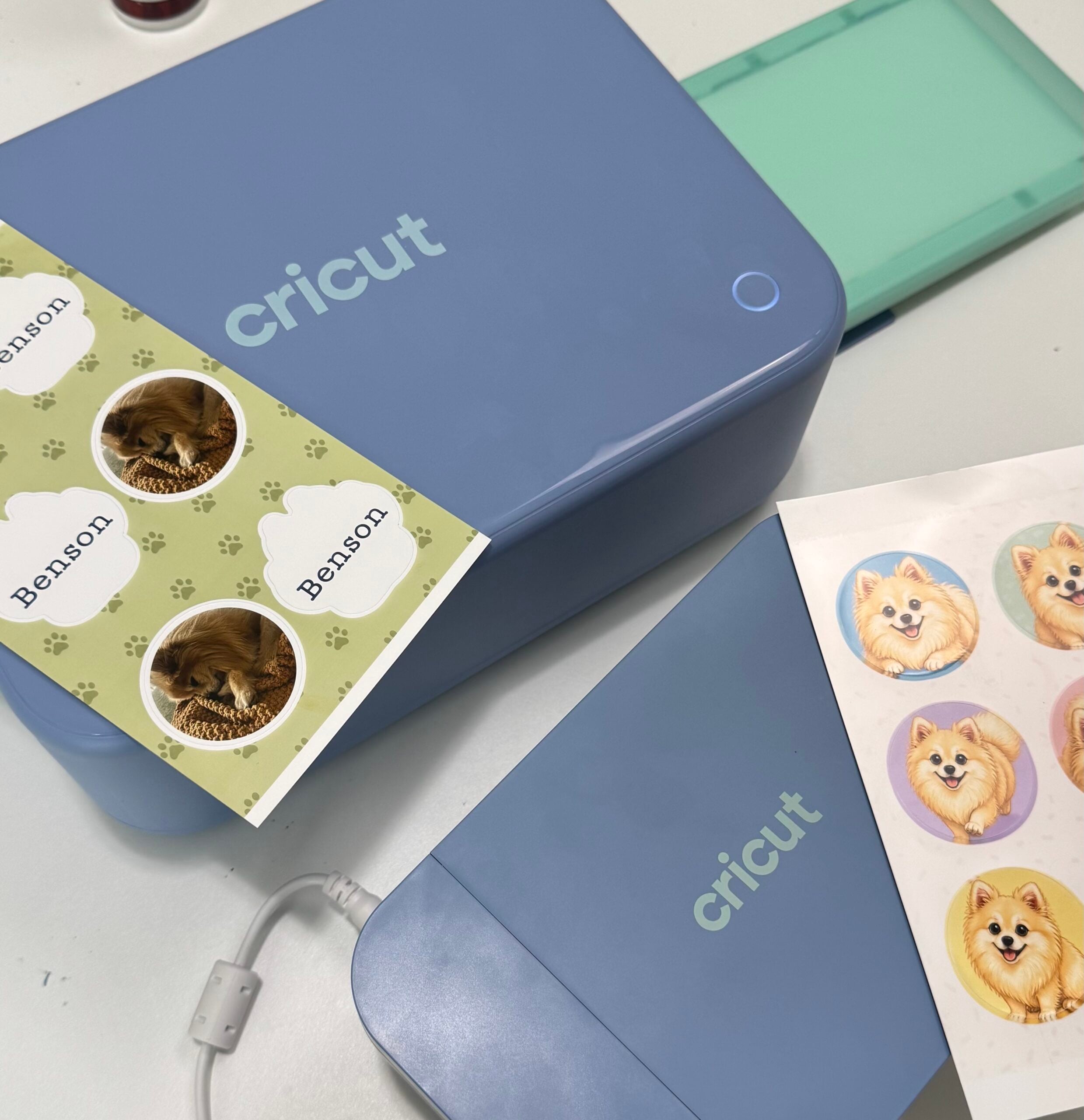
Sticker projects automatically set up a printable layout that works with Print Then Cut, making it easier for beginners to create stickers.

The template shows a boundary where your images should be placed, ensuring everything fits within the printable area.
Once your images are uploaded, the software automatically adds the sticker border. You can then adjust the sticker style by editing:
- Border thickness
- Fill color
- Die-cut or kiss-cut style
For many beginners exploring Design Space, this simplified setup can make sticker creation much easier than manually setting up offsets and flattening layers.
However, material settings make you choose Cricut-branded products for a lot of the projects, but especially when using sticker features tied to Cricut Access tools (i.e. the sticker maker function).

Side note: the sticker creator has become more accessible (no longer behind the Cricut Access paywall).
Pros and Cons of Cricut Guided Flows
Like most new features, Cricut Guided Flows have both strengths and areas that could improve.
Pros
Beginner friendly
The structured setup helps a Cricut beginner understand how projects are created.
Faster project setup
Templates eliminate the need to manually size design areas for certain projects.
Visual previews
Seeing how your design might look on items like mugs or tumblers helps guide the creative process.
Built-in templates
The customizable templates can provide inspiration for new project ideas.

Cons
Limited guidance
While the system provides a setup, it doesn’t always teach the design techniques behind the project.
Material restrictions
Some settings prioritize Cricut materials or smart materials, which may not match what every crafter uses.

Less control for advanced users
A seasoned creator may prefer working directly on a blank canvas instead of using templates.
Who Should Use Cricut Guided Flows?
Overall, Cricut Guided Flows are best for beginners learning the Cricut Design Space software.
If you recently purchased a new Cricut machine, these flows can help you complete your first project with less confusion.
They provide a structured starting point and help simplify the creative process, which can be especially helpful when you’re still learning how Cricut Design Space works.
However, a seasoned creator who already understands offsets, layers, and advanced design techniques may find the templates less useful.
That said, these exciting updates show that Cricut is continuing to experiment with ways to make crafting more accessible.
Final Thoughts on Cricut Guided Flows
The introduction of Cricut Guided Flows is an interesting step forward for Cricut Design Space.

While the feature may still need refinement, it offers a helpful starting point for beginners learning how to create projects with their machines.
If you’re just beginning your crafting journey, these flows can simplify the first step of choosing a project and setting up your design space.
For more experienced users, the templates may serve as inspiration or quick starting points when brainstorming project ideas.
Either way, these new features highlight Cricut’s ongoing effort to improve the new Design Space software experience for crafters.
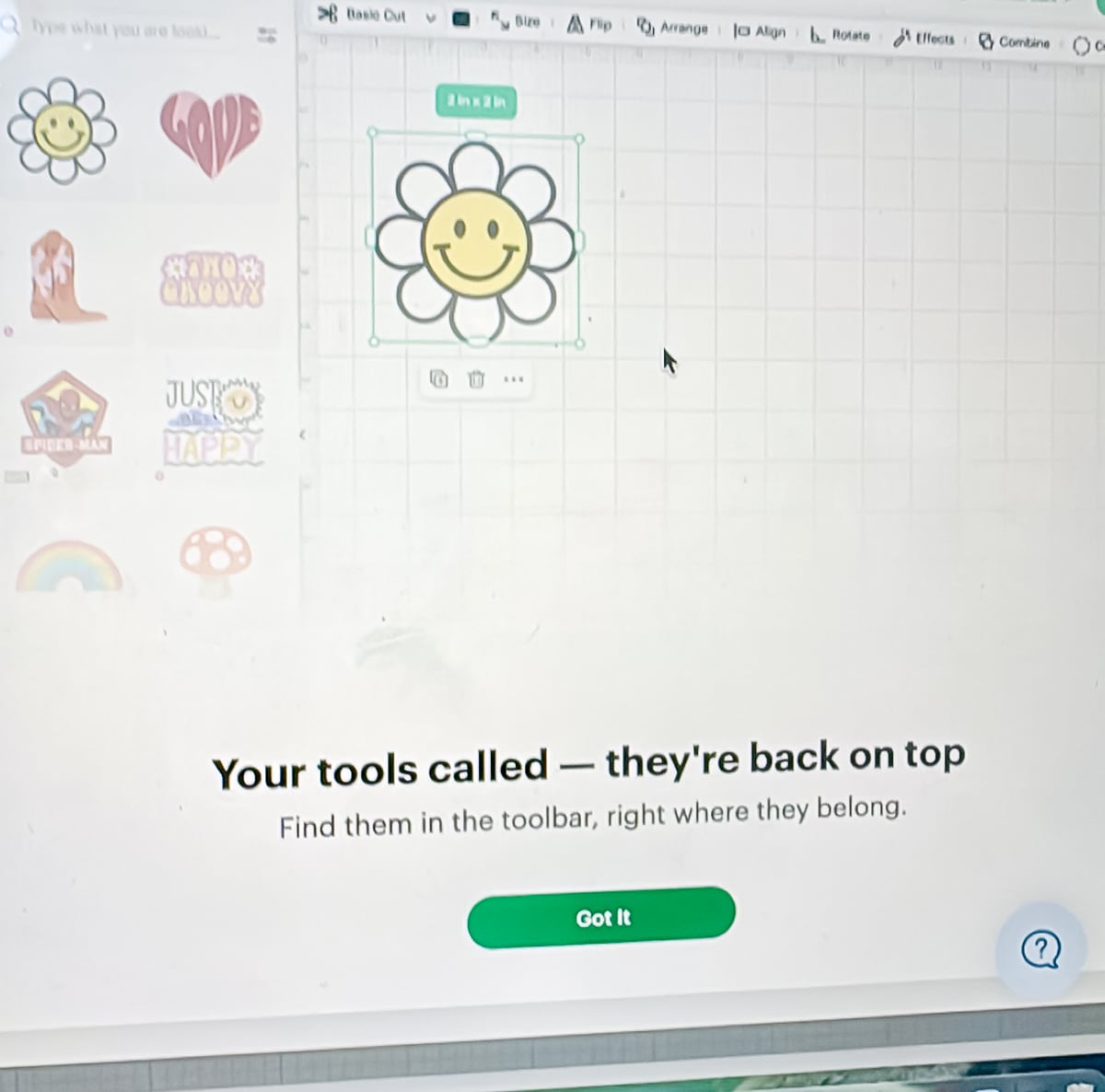



I’m sure this will be helpful for people new to Cricut. I actually didn’t know that the new thing was called “guided flow”, but whatever it’s called, it’s pretty annoying for those like me, who’ve been using DS for years and just wanna design our own thing or import our own cut files. It’s frustrating to have to click through several different things just to get to a blank canvas. I just wish they’d make things easier. If someone likes to be guided, that’s fine, but I should just be able to click on “blank canvas” and immediately get to a blank canvas! Seems every time they update, it makes things harder. I also don’t like that the left pane opens every time I do anything, and I have to close it before I can move on. And, old news, I just hate the tools being in a separate Edit pane. It takes up half my workspace every time I have to open it, and sometimes the things like Arrange are up on top, and then suddenly, they’re in the Edit section. Just frustrating. Takes longer and longer to do anything.
I live in California and I do have the DTF transfer on mine.
Its very very obvious to me that the Cricut development team has almost no interest or experience with the product they attempt to produce for the name sake. I find that odd.. and so too i would think any investor or public trade mindset, to literally screw with a whole Cricut community with poor performance updates constantly, to the point of pushing existing and new costumers away and towards a different brand of cutting machine, and thats what is truly sad for everyone. Lastly AI can’t fix an art forms building structure, that’s human creativity and a individual’s expressions . Randy