
Free Planner Stickers PNG + Make Quick Stickers with Cricut


If you bought a Cricut and still haven’t made a project yet, this is your sign to start. These Free Planner Stickers PNG files are simple, minimal, and designed specifically for beginners who want an easy win. No vinyl, no weeding, no complicated setup. Just a fast, fun project that helps you learn Print Then Cut and actually use your machine.
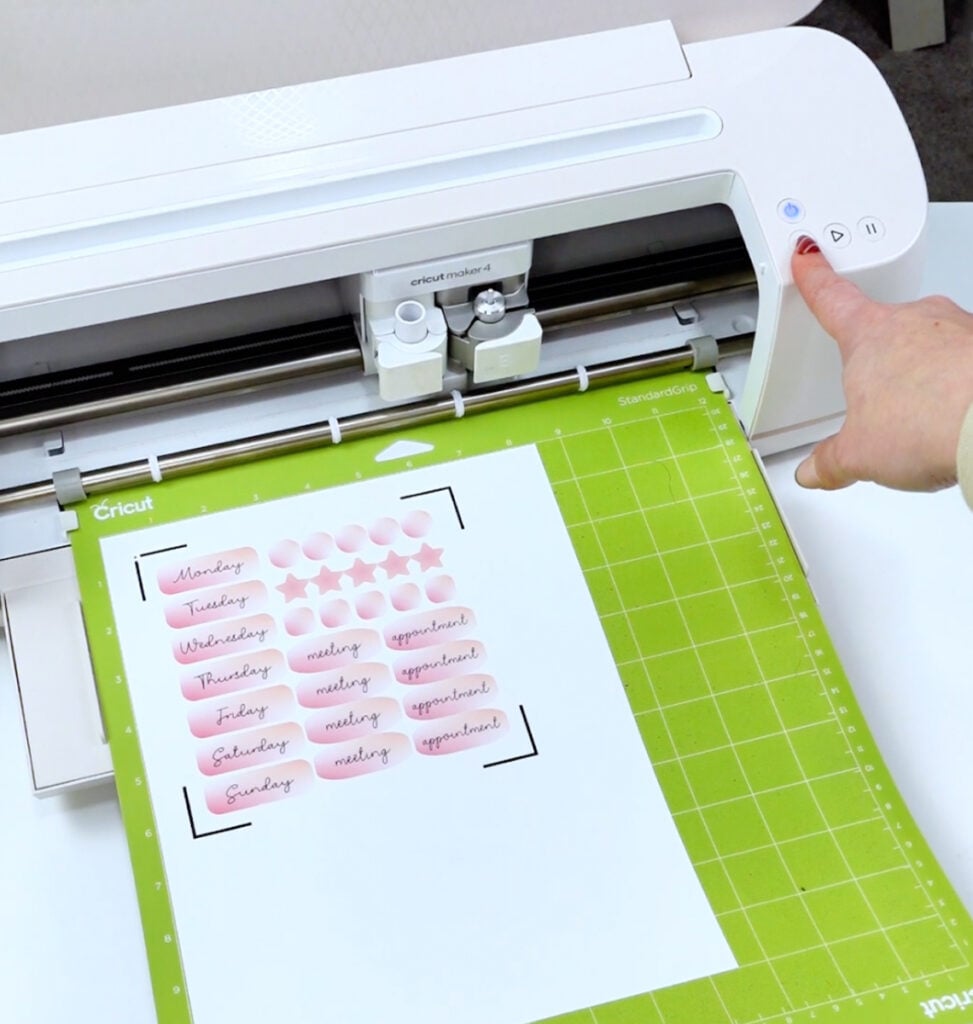
In this tutorial, I’m sharing free planner stickers you can download directly from my site and walking you step-by-step through how to turn them into printable stickers with your Cricut. These files are a free download for personal and commercial use and are made for physical planners (not a digital calendar planner or tablet planning apps).
If you love clean designs, neutral color palettes, and functional planner layouts, you’re going to love these.
What’s Included in These Free Planner Stickers PNG Files
These Free Planner Stickers PNG files are provided as sheet sticker images saved as a PNG file with a transparent background, making them perfect for Cricut Print Then Cut.
Inside the free download, you’ll get:
- Day-of-the-week labels
- Meeting and appointment stickers
- Minimalist dots, stars, and rounded shapes
- Three color palettes: blue, neutral, and pink
Because each image has a transparent background, there’s no cleanup required in Cricut Design Space. You can upload, resize, and cut right away.
These are digital stickers in the sense that you download them digitally, but they are not intended for a free digital planner or digital planner apps. They are made specifically for cutting machines like a Cricut.
Who These Planner Stickers Are For
These Free Planner Stickers PNG files are a great way to get started if:
- You’re brand new to using a Cricut
- You prefer a paper planner over a digital system
- You want simple, functional designs
- You enjoy decorating planner pages and weekly layouts
They’re ideal for:
- Weekly spreads
- Habit tracking
- Adding a cute note reminder
- Highlighting meetings or appointments
- Enhancing weekly pages without clutter
Materials You’ll Need
This post may contain affiliate links, which help support my blog at no extra cost to you.
Before you start, gather these supplies:
- Cricut cutting machine (any model that supports Print Then Cut)
- Printer (inkjet recommended)
- Printable sticker paper – I like to use Koala Vinyl Matte or A-SUB printable sticker paper
- Cricut cutting mat – I used a green Standard mat, but you can also use the blue light grip mat
- Fine-point blade
This simple setup makes planner stickers a great way to practice without investing in extra tools.
How to Make Printable Planner Stickers with Cricut
This process follows exactly what I show in my short-form video and is beginner-friendly.
Step 1: Upload the PNG Files
Open Cricut Design Space and upload your Free Planner Stickers PNG files. You can drag and drop or browse your computer. You can hit continue at the remove background step as these are ready to go.

When prompted, select Flat Graphic. We don’t want multiple layers (think vinyl projects) and we don’t want single layer (this will just leave us with the shapes). Flat graphic should always be chosen when making a Print then Cut design.
Step 2: Resize and Arrange
Once uploaded, the stickers may appear large. Resize them to fit your planner pages or weekly layouts. I resized my image to about 6.5 inches wide. This made the stickers about 1.5 to 2 inches long (for the weekday names and appointment reminders). To check the sizing of each sticker you can grab a simple shape (like a rectangle or square) and size it to the sticker. You can then adjust the size up or down depending on your needs.

Looking to maximine your Print then Cut pages? Check out my Print then Cut Hack here!
Step 3: Click Make and Prepare to Print
Click Make to open the Print Then Cut screen. This is where you’ll see the registration marks Cricut uses to cut accurately.
Here, you can:
- Move stickers around
- Adjust your paper size – most printers will cut on A4 or 8.5×11. Keep this in mind with picking your paper size!
- Optimize space on the page
Step 4: Print Using System Dialog
Toggle Use System Dialog before printing. This allows you to control printer quality and color settings.
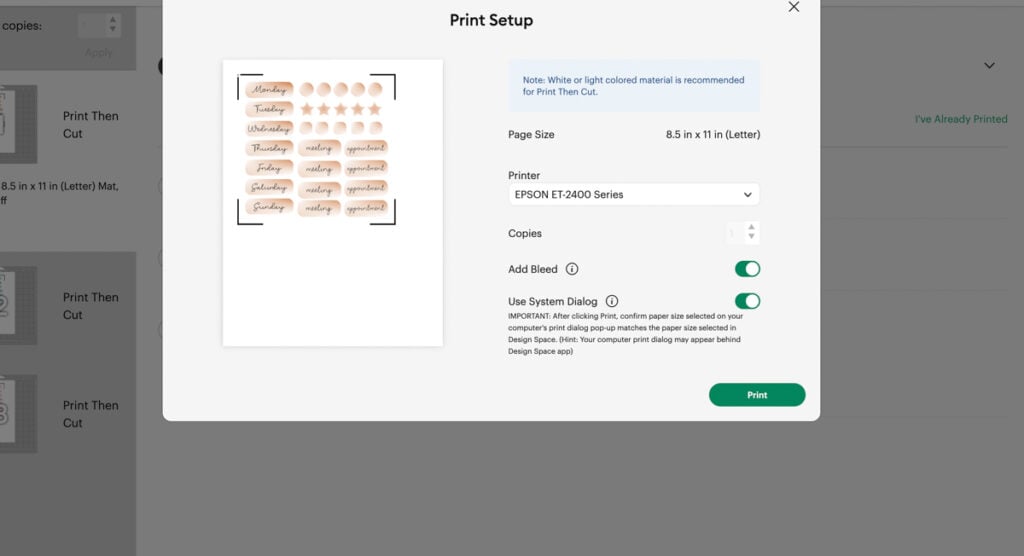
Print quality matters, especially for minimal designs and soft gradients.
I adjust my printer to Quality but your pop up may have different named adjustments.
Step 5: Cut Your Stickers
Place your printed sheet on the mat, aligning it to the top corner with the arrow facing up. Load the mat and press the flashing arrows.
For cut settings:
- Start with Printable Sticker Paper – this might be too light or too deep of a cut. Ideally we want kiss cut stickers (they stay on the page). You can even try something like washi tape or vinyl settings!!
Once finished, you’ll have physical stickers ready for your planner.
Ways to Use These Planner Stickers
These Free Planner Stickers PNG designs work beautifully for:
- Weekly planning
- Marking appointments
- Decorating planner pages
- Creating simple sticky notes
- Adding a cute note to your spread
Frequently Asked Questions
Can I use these in a digital planner?
No. These digital stickers are meant for printing and cutting only.
Can I sell items made with these stickers?
Yes, they include a small business license.
What sticker paper works best?
I recommend Koala Vinyl Matte or A-SUB for consistent cuts and clean results.
Do I need Cricut Access?
No. These files work without a subscription.
Download the Free Planner Stickers
These Free Planner Stickers PNG files are available as a free download inside my Community vault. When you join, you’ll get instant access to this set plus other freebies I share regularly. Join below with your email to get the password!
Inside the Community vault you will find these under Design Number #208.
Please read how to download here. Allow 5-10 minutes for email to arrive with the password when signing up for the first time.
Final Thoughts
If your Cricut has been intimidating, this project proves it doesn’t have to be. Planner stickers are a great way to start crafting without pressure. These free printable planner stickers let you practice Print Then Cut, build confidence, and walk away with something you’ll actually use.
Break out your machine, grab the free download, and let’s get crafting.
Stay crafty 💛


![Cricut Valentine’s Day Idea: Paper House Village [Free 3D SVG]](https://dinosaurmama.com/wp-content/uploads/2023/02/vday-houses.jpg)